RadSafe VR user manual: VR and Desktop
This manual shows you how to use RadSafe VR, from launching the simulation to reading your dose results and completing the Radiation Safety Workshop.
It covers the Desktop version on Windows or Mac, and VR on HTC Vive, Vive Pro, Vive Pro 2, Valve Index, or Meta Quest (standalone, or connected to a PC with Link or Air Link). Where VR and Desktop work differently, each section has a VR part and a Desktop part.
Launch the simulation
How you launch depends on how you use RadSafe VR:
| You are using | How to launch |
|---|---|
| Desktop (Windows or Mac) | Sign in to the Web Portal, select Radiation Safety, then Launch 2D simulation. |
| VR connected to a PC | Sign in to the Web Portal, select Radiation Safety, then Launch VR simulation. |
| Standalone Meta Quest | Launch from the headset. See Standalone Meta Quest. |
The simulation must be installed on the computer first. If you haven't used the Web Portal before, see How do I use the Portal?
Standalone Meta Quest
RadSafe VR runs fully standalone on a Meta Quest that your institution manages. Your institution installs it through its headset management system, so you won't find it in the Meta Horizon Store. If you use your own Meta Quest at home, connect it to a PC with Link or Air Link instead.
Setting up headsets for standalone use is a job for your institution's IT team. Send them to What VR equipment will I need?
Once your institution has set up the headset:
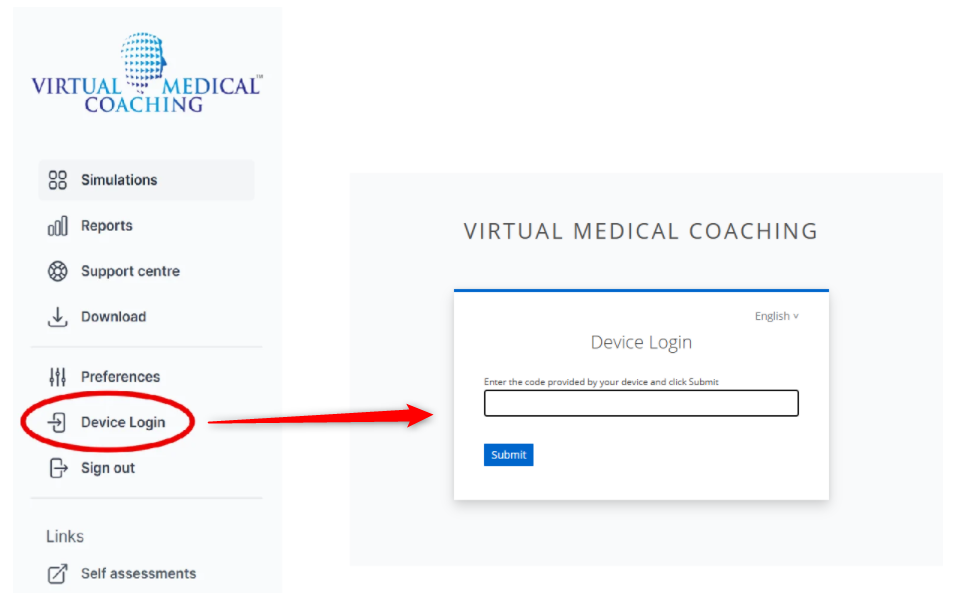
The lobby
After you launch, you arrive in the lobby. Choose what you want to do:
- Head: cerebral angiography
- Heart: coronary angiography
- Liver: hepatic angiography
- Workshop: the Radiation Safety Workshop. See Radiation Safety Workshop.
Head, Heart and Liver open the interventional theatre in Practice Mode, set up for that procedure.
Controls
VRControllers
Button layouts vary between headsets. A poster on the wall inside the theatre shows the buttons for your headset, so check it when you start. Spend a few minutes getting used to your controllers before your first session.
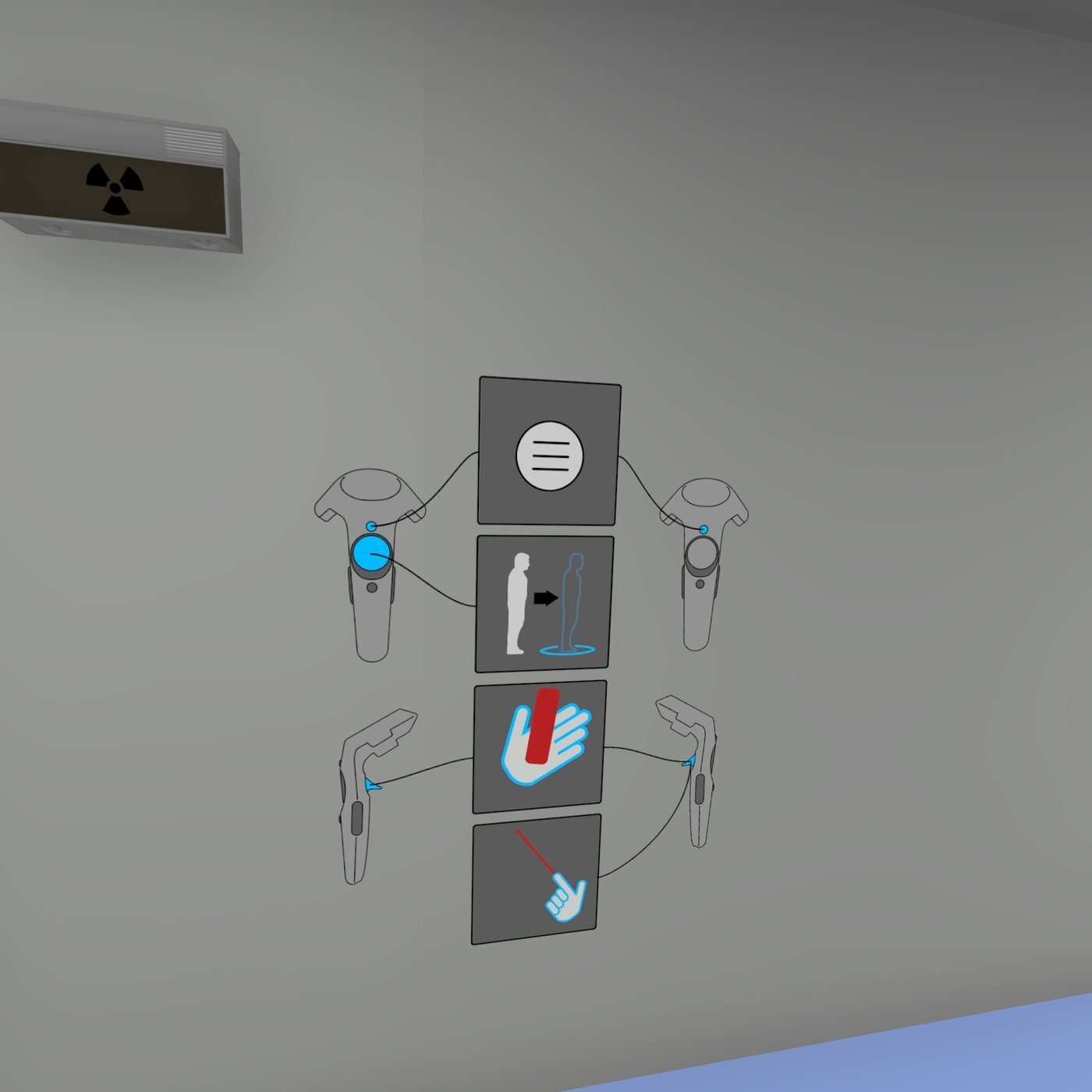
The Menu button on your controller opens the Machine Control Panel. See Machine Control Panel.
DesktopButtons, keyboard and mouse
These buttons are at the bottom of the screen. The letter or number on each button is its keyboard shortcut.
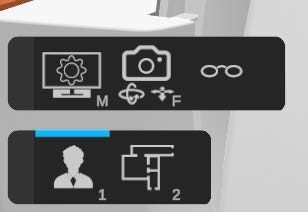
| Button | Key | What it does |
|---|---|---|
| Settings | M | Opens the Machine Control Panel. |
| Camera | F | Lets you walk around the room. |
| Glasses | None | Puts your lead glasses on or takes them off. A blue line on top of the button means you are wearing them. |
| First-person view | 1 | Shows the room through your own eyes. |
| Bird's-eye view | 2 | Shows the whole room from above. |
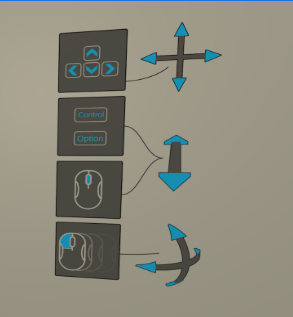
To move around and zoom, use the same keyboard and mouse controls as X-ray Pro VR:
Windows
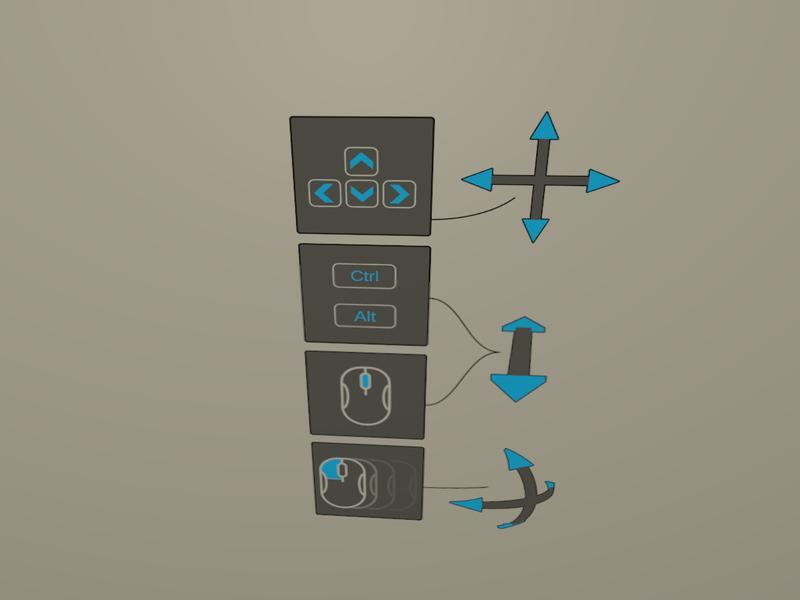
Mac
VR interactions
VRTeleporting
Teleporting lets you move around the theatre without walking, which is useful in a small space. You can also mix walking and teleporting.
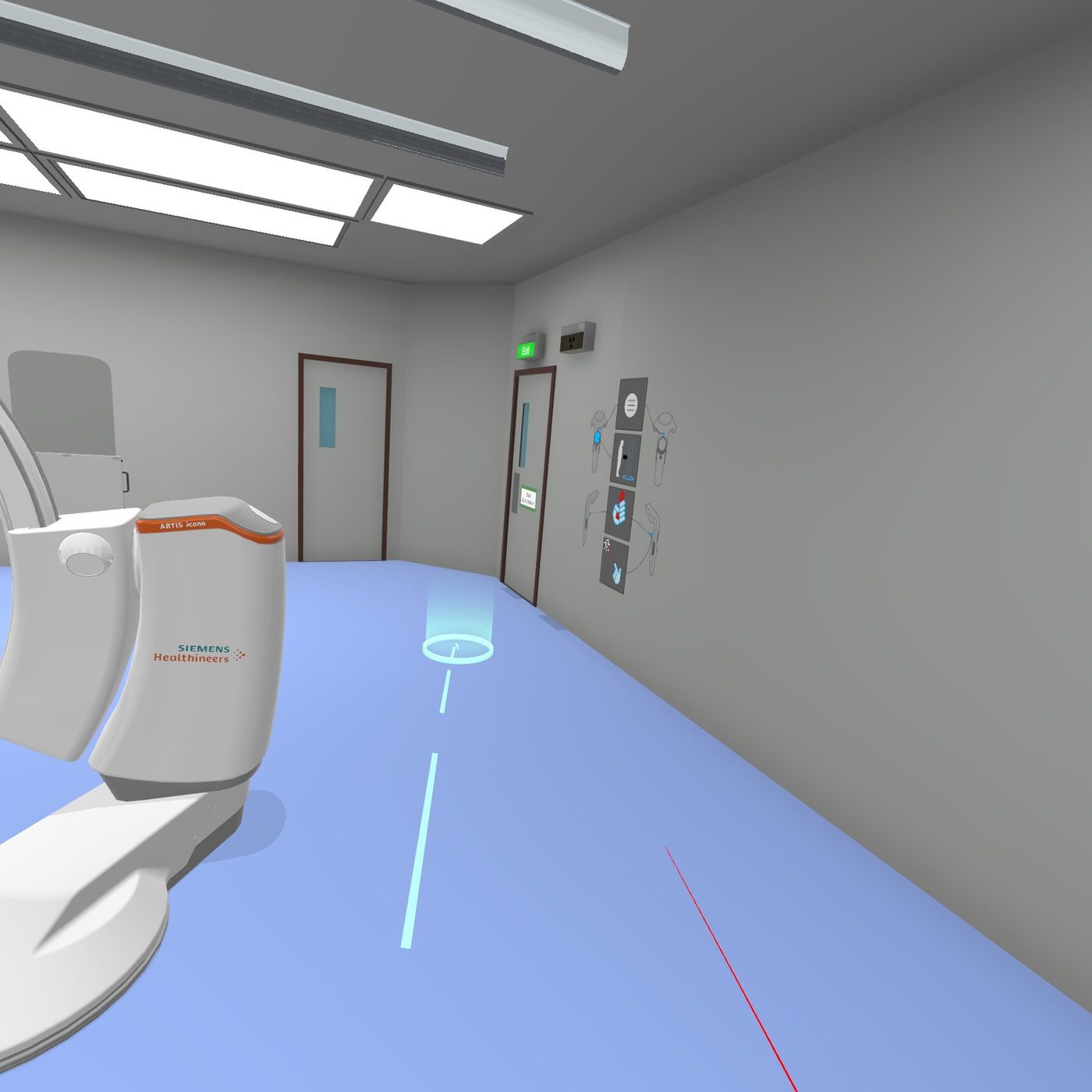
A red circle means you can't teleport there, for example a wall. Point at a clear space on the floor instead.
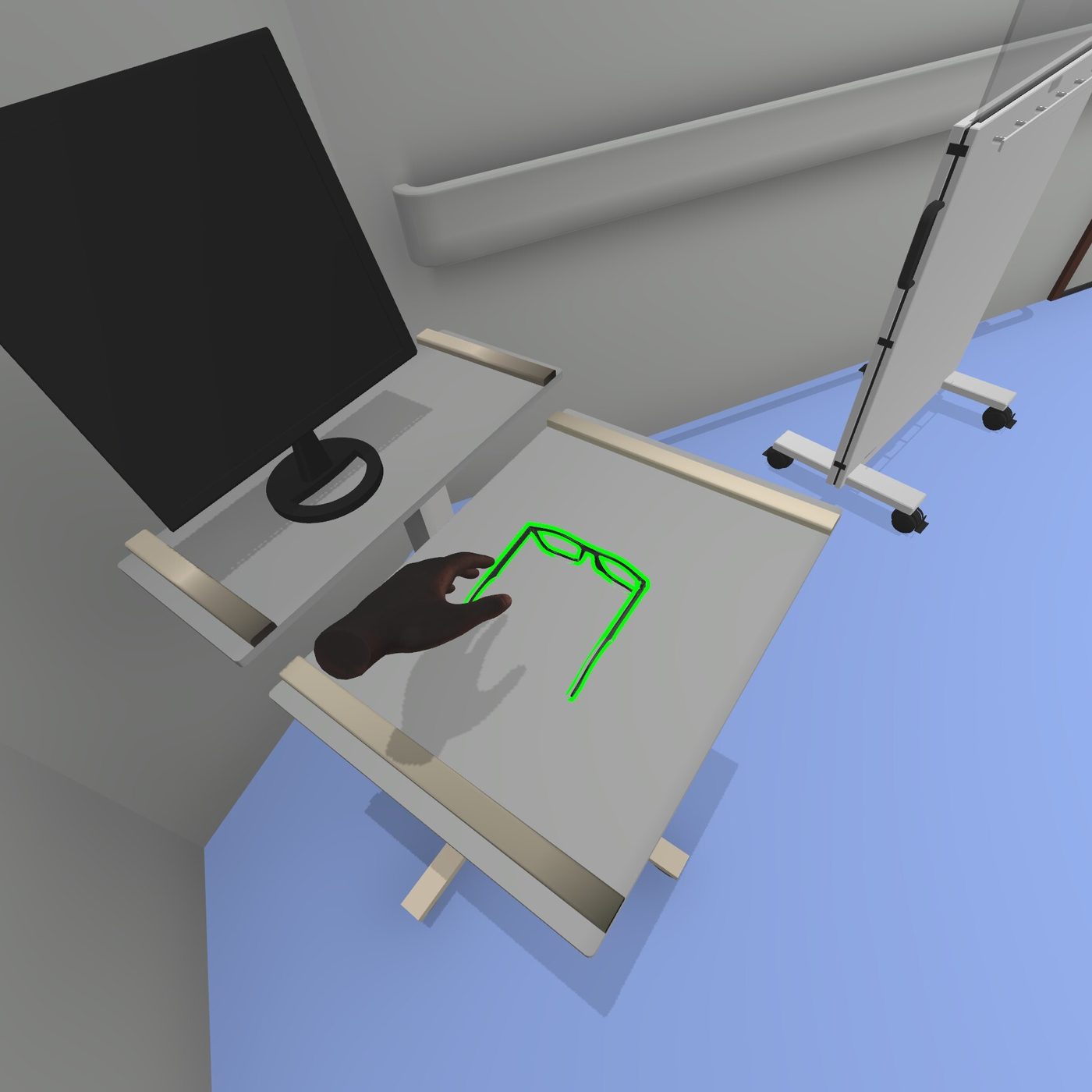
VRGrabbing and moving
You can move staff, trolleys, shields and the anaesthetic machine, and pick up your lead glasses.
VRPointing and pressing
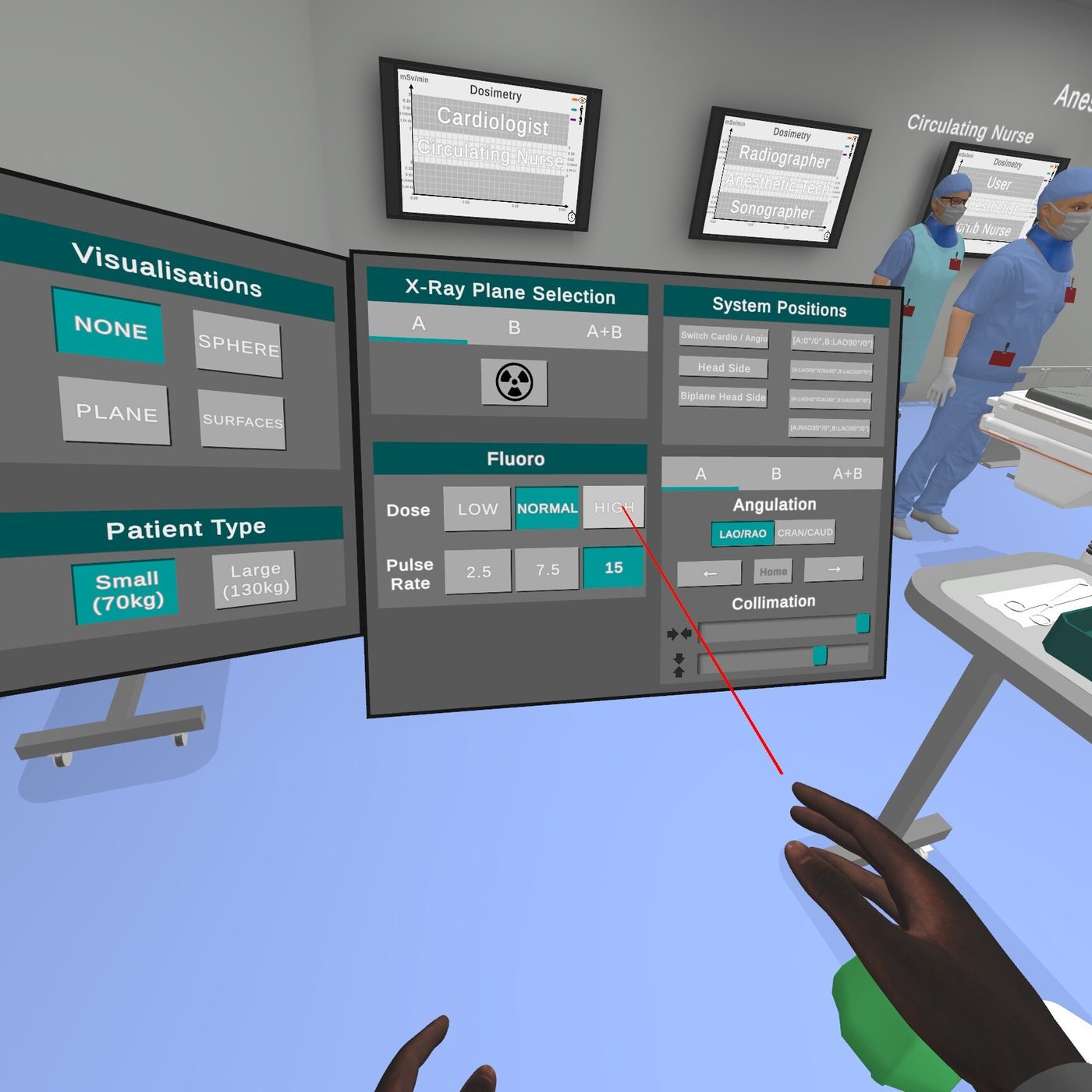
Point to press a button or select a person.
- Your left hand points at short distance, like a finger.
- Your right hand uses a laser pointer that works close up or at a distance.
Practice Mode
Practice Mode loads you straight into the theatre.
As with any VR, you may start in an odd position, depending on your room setup. You might be very close to the table, or partly inside an object. If this happens, walk or teleport to where you want to start.
- Put on your lead glasses. They are 0.75 mm lead equivalent. In VR, pick them up. On Desktop, use the glasses button.
- Arrange the room. Move your colleagues and equipment to where you want them. For example: should a trolley sit next to the scrub nurse and another next to the surgeon? Should they stand beside the patient's groin for femoral artery access? Where should the anaesthetist and anaesthetic machine be?
- Open the Machine Control Panel and turn the radiation on. Watch how the scatter changes as you move the tubes and the staff.
All staff wear lead aprons and thyroid shields. Some are visible; others are under a sterile gown.
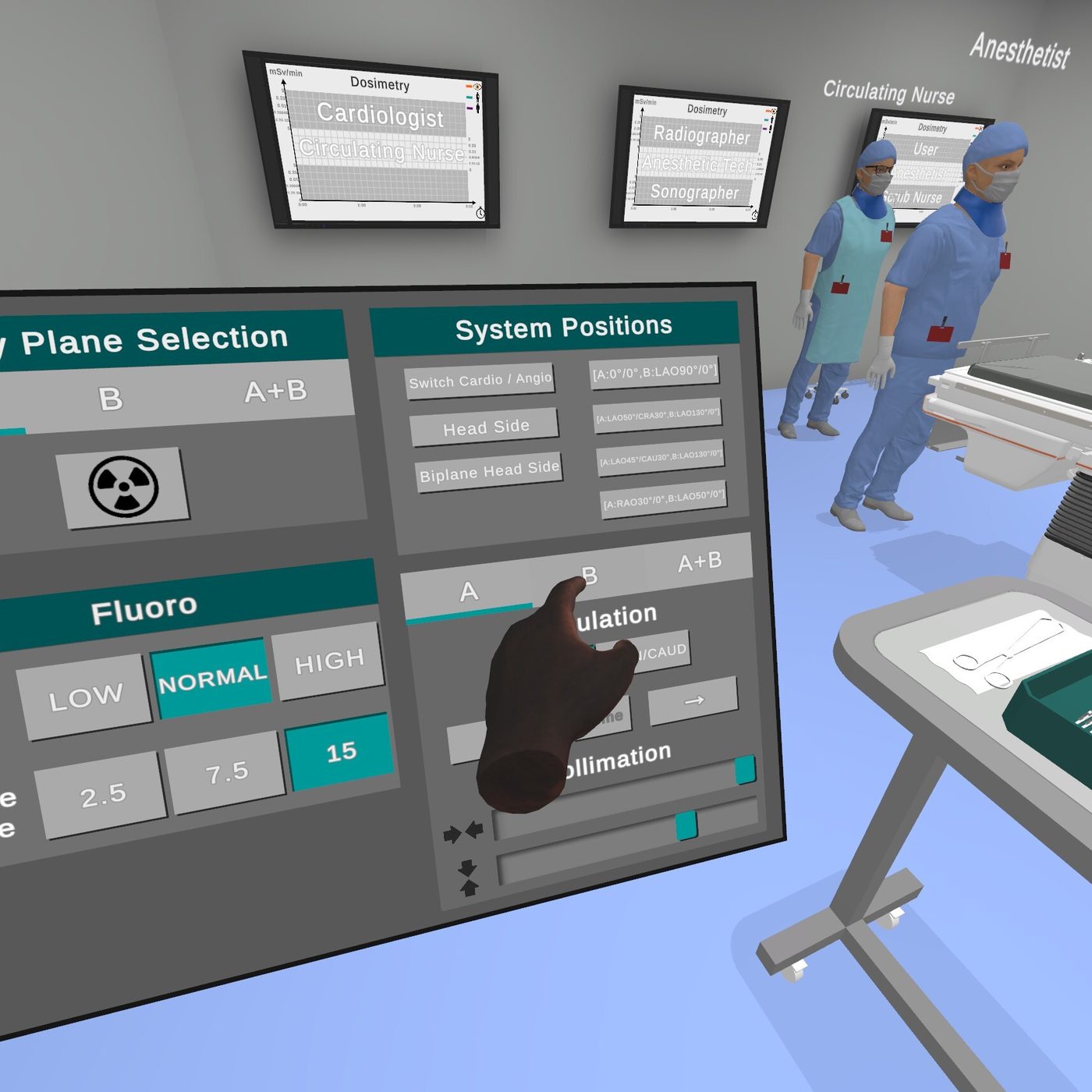
Machine Control Panel
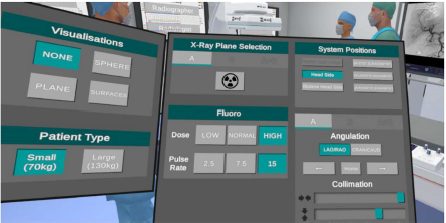
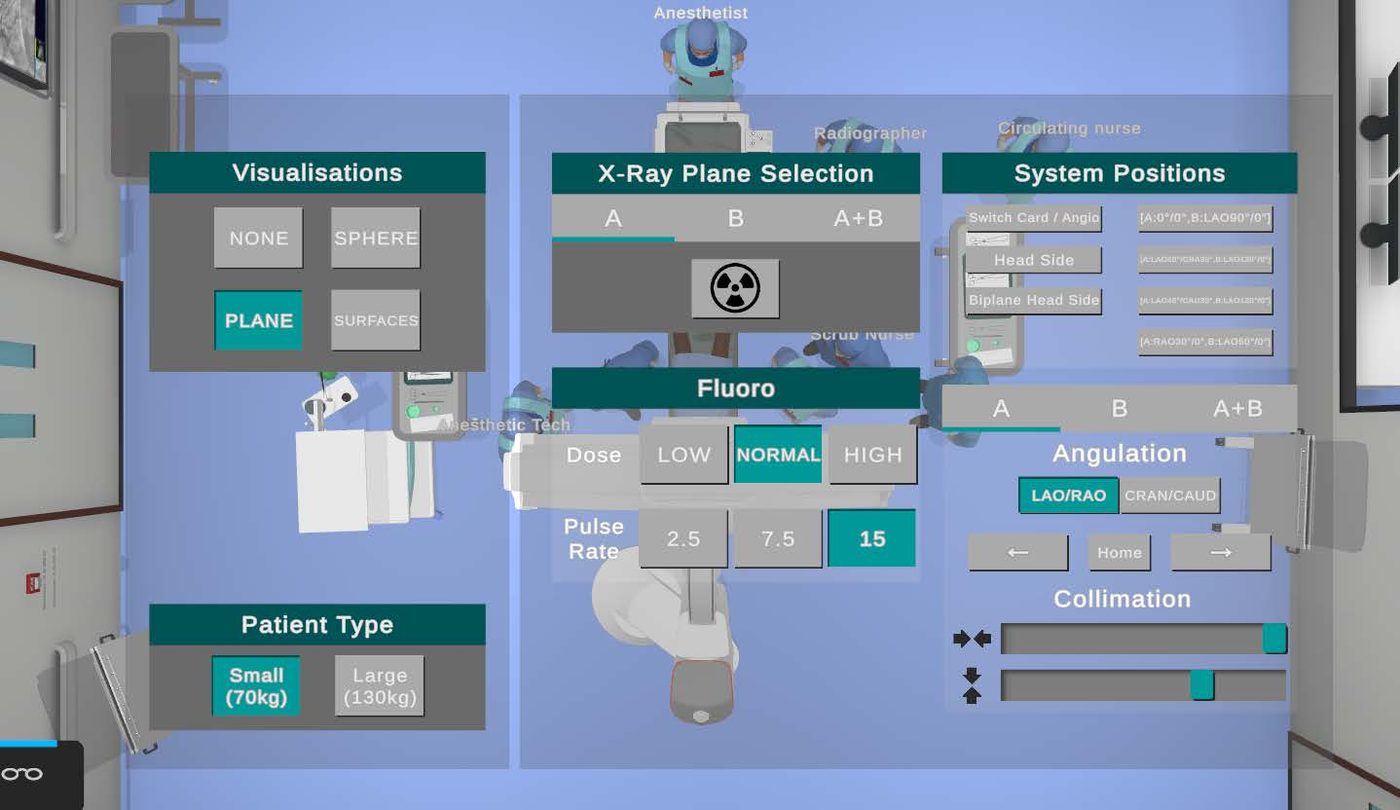
The Machine Control Panel is where you run the fluoroscopy equipment. Open it with the Menu button on your VR controller, or the settings button (M) on Desktop.
From the panel you can:
- turn the radiation on and off, and choose which tube to use
- change the dose and pulse rate
- choose a preset position or move the C-arms yourself, and collimate
- change how radiation is shown
- choose the patient size
Tube selection and radiation
The middle of the panel, X-Ray Plane Selection, lets you choose:
- A: the floor-mounted C-arm
- B: the ceiling-suspended C-arm
- A+B: both together
To use Tube B, you may need to select the Biplane Head Side preset under System Positions first. This depends on whether you are in Head, Heart or Liver.
Once you have chosen your tube or tubes, press the radiation symbol to turn the radiation on. The radiation warning lights in the room come on, and the radiation is shown using your chosen visualisation (unless you have chosen None). Press it again to turn the radiation off.
Fluoro: dose and pulse rate
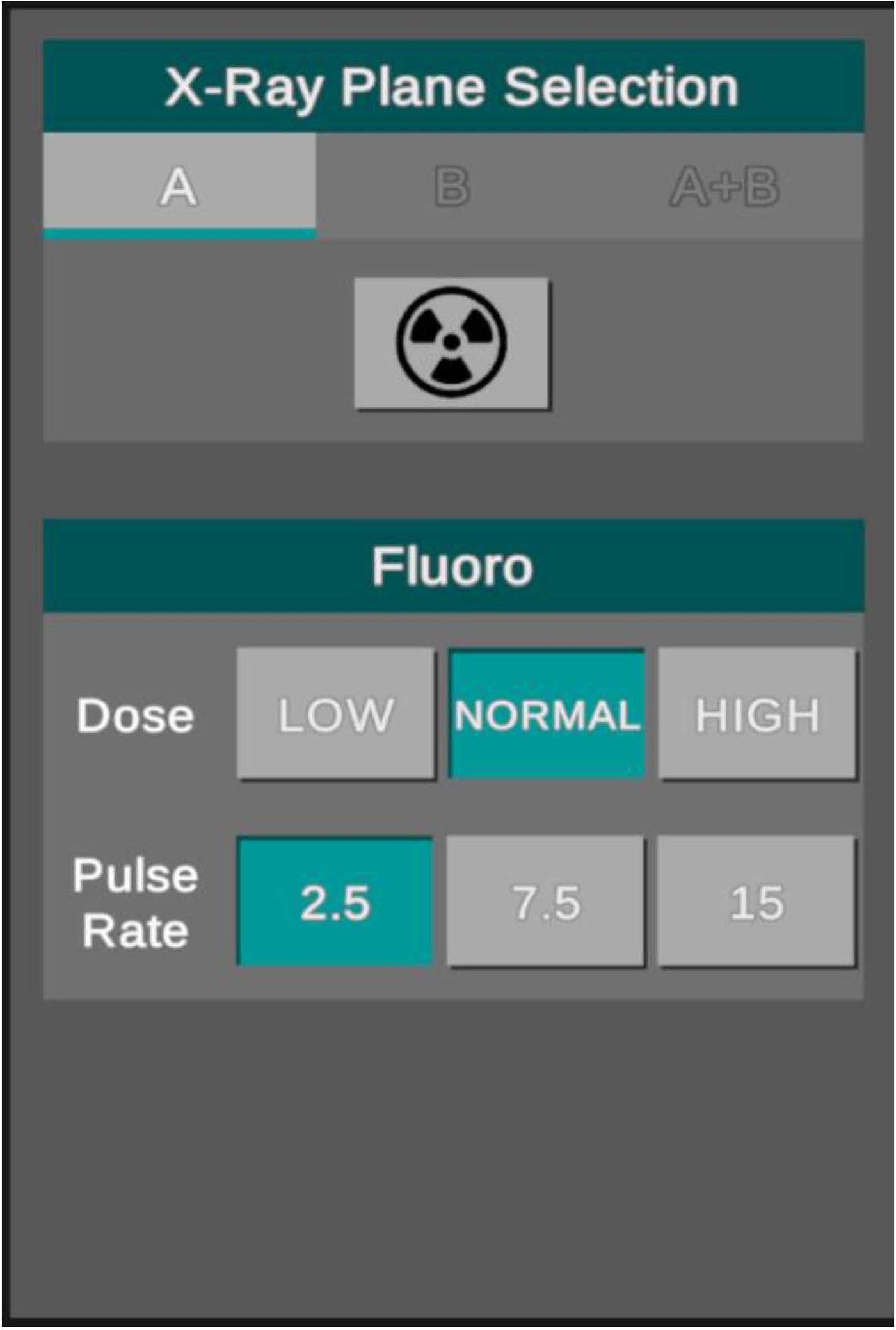
Below the tube buttons are the Fluoro settings.
| Setting | Options | What it changes |
|---|---|---|
| Dose | Low, Normal, High | How much radiation is used to make the image. You may know this as detail mode. The dose modifiers are 0.55 (Low), 0.78 (Normal) and 1 (High), set by predefined kVp and mAs. |
| Pulse rate | 2.5, 7.5, 15 | How many radiation pulses per second. Fewer pulses mean less dose to the patient and staff. |
System positions and collimation
This is where you rotate and angle the C-arms.
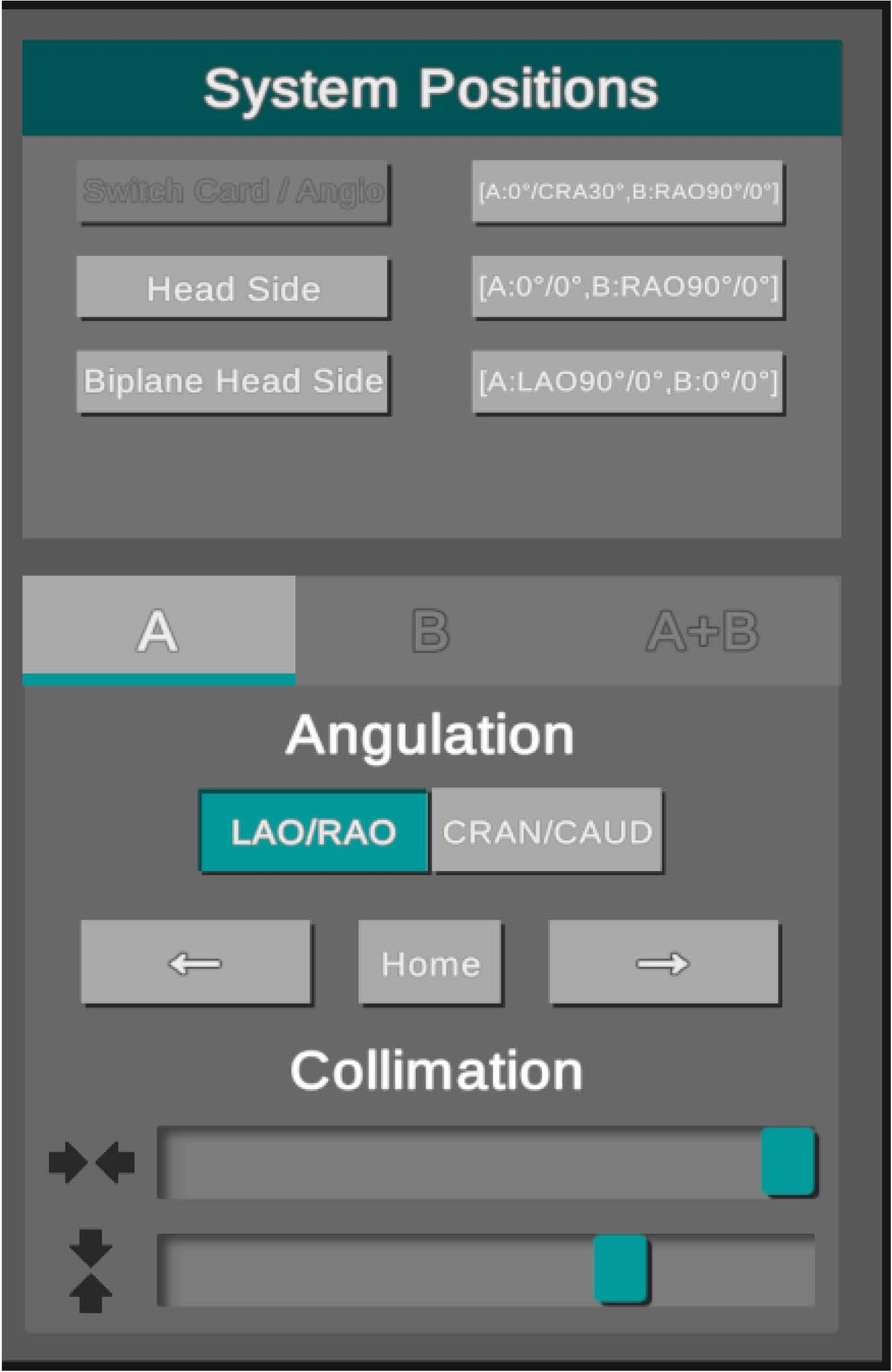
Presets: choose Switch Card/Angio, Head Side or Biplane Head Side to move the C-arms to a common setup.
Manual positions:
What each C-arm can reach:
- C-arm A rotates in 30-degree steps (LAO/RAO) at each of the three CRAN/CAUD positions: minus 30, 0 and plus 30 degrees.
- C-arm B rotates through 360 degrees in 30-degree steps when CRAN/CAUD is 0. When CRAN/CAUD is plus or minus 30 degrees, it reaches every 30-degree step except 0 and 180. Its design stops it reaching those four positions. Use the Switch Card/Angio preset to reach the second half of C-arm B's rotations.
If a person or object blocks a C-arm while you move it, a red flashing outline shows what is in the way. Move the person or object, then try again.
Collimation: use the two sliders under Collimation to narrow or widen the beam.
Visualisations
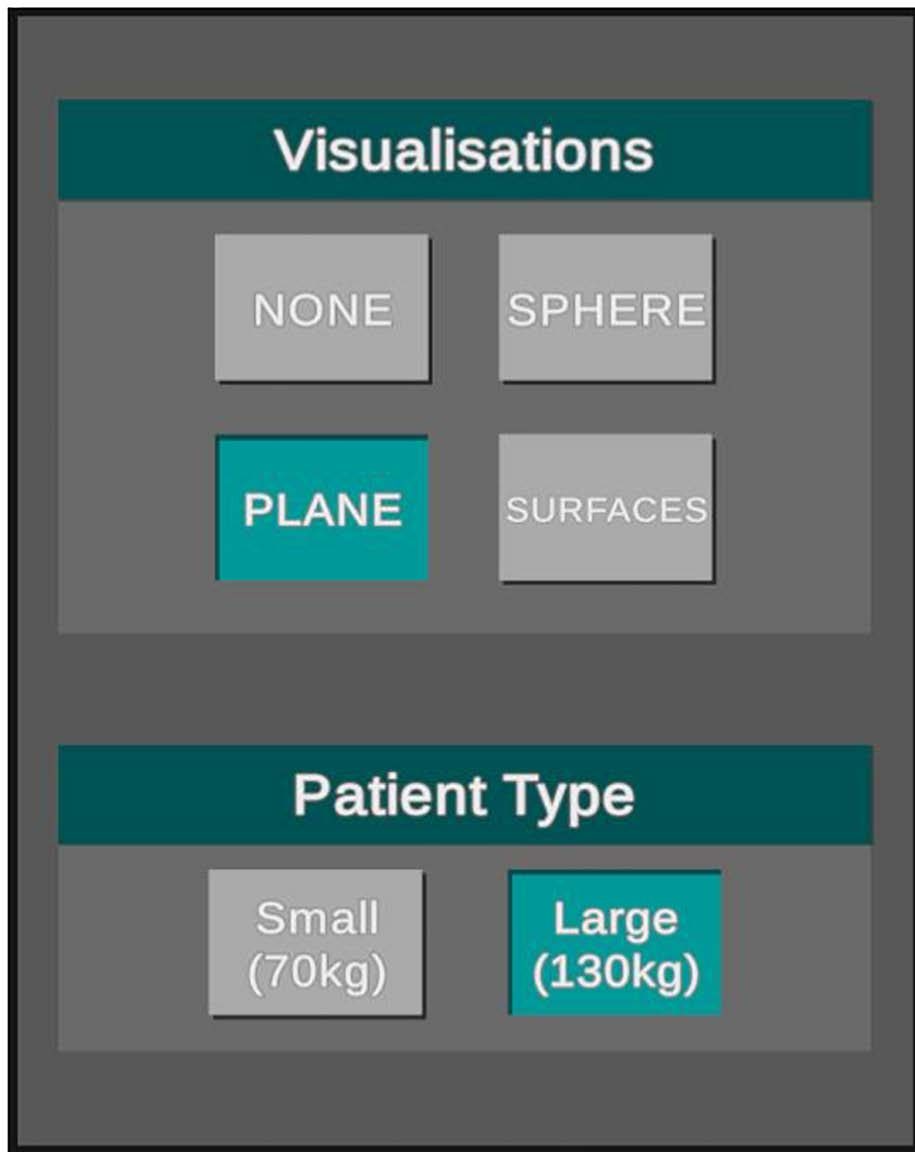
Visualisations show where the radiation goes in the room. Choose one of four:
| Option | What you see |
|---|---|
| Surfaces | Radiation intensity on the surfaces of people and objects. The rest of the room turns grey, so the colours are easy to read. |
| Plane | A moving sheet of radiation that rises from the floor, coming from the direction of the source. |
| Sphere | Radiation spreading out from the source in a growing sphere. |
| None | Radiation is on but not shown. Useful when testing yourself. |
These options only change what you see. The radiation stays on or off as you set it.
The colours show the dose rate, from highest to lowest:
| Colour | Dose rate |
|---|---|
| Dark crimson or black | The primary beam |
| Red | Over 18 µSv/min |
| Orange | Over 9 µSv/min |
| Yellow | Over 4.5 µSv/min |
| Green | Over 2.25 µSv/min |
| Blue | Under 2.25 µSv/min |
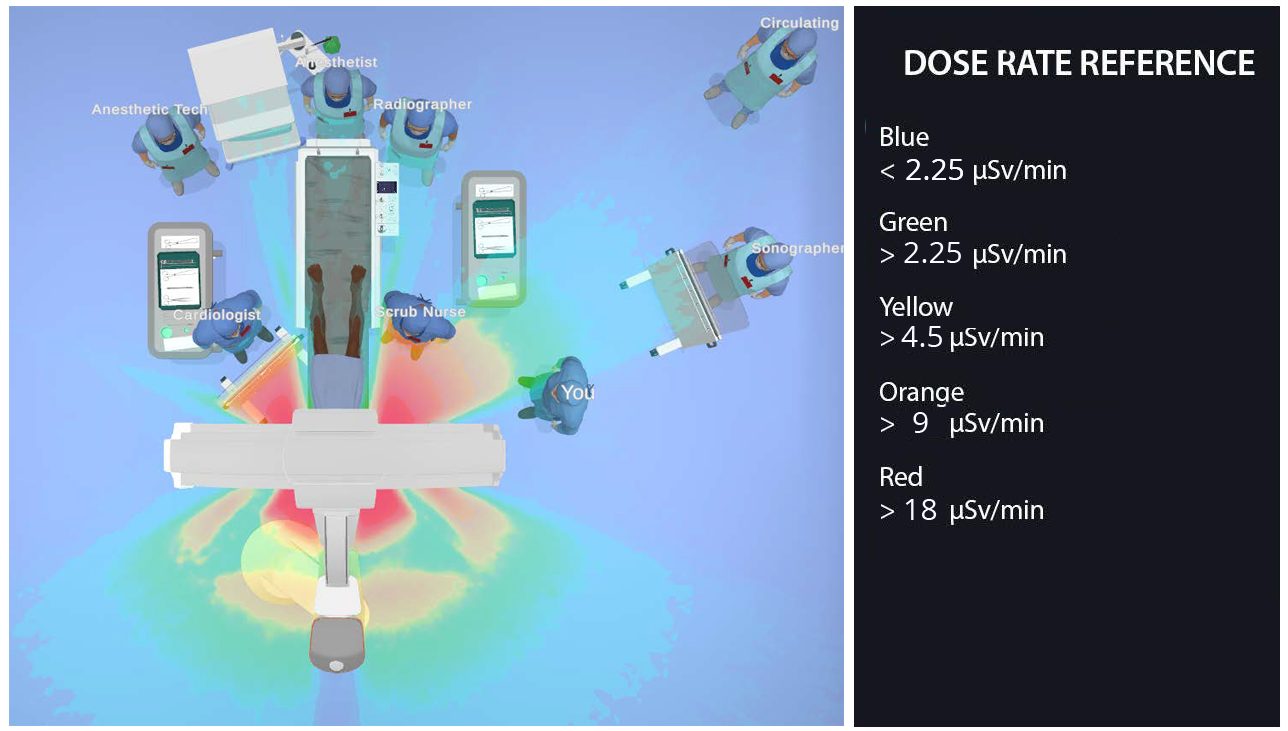
Patient type and dose recording
Patient type: choose Small (70 kg) or Large (130 kg) to see how patient size changes the scatter.
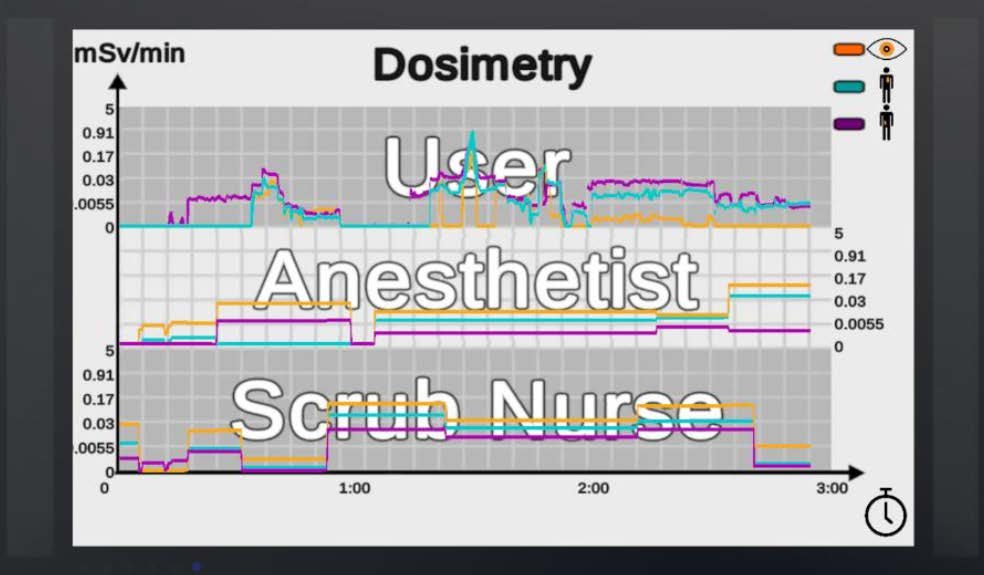
Dose recording: once the radiation is on, graphs on the theatre wall record the dose for you and each member of staff, at three heights:
- eye (lens) height
- chest height
- waist height
You also wear a dosimeter on your right wrist. All dose rates are in microsieverts per minute (µSv/min).
Exit door and Exit menu
When you've finished, go to the exit door. It opens the Exit menu, where you can:
- exit the simulation, or
- choose a new simulation, which takes you back to the lobby. From there you can switch procedure, for example from Heart to Head, or start the Workshop.
Reports
Your dose results are saved to your account. After your session, sign in to the Web Portal and open Reports.
Radiation Safety Workshop
The Radiation Safety Workshop is a self-paced self-assessment of eight short lessons. You can complete it in as little as 20 minutes, on Desktop or in VR. Start it from the lobby by selecting Workshop.
The eight lessons cover:
- lead shielding
- protective eyewear
- tube position: left lateral
- tube position: right lateral
- source-to-image distance (SID)
- patient size
- dose rate
- collimation
Each lesson compares two setups. Scenario A shows best practice. Scenario B shows a common poor practice. You see the images and dose levels for both, so you can see the difference each decision makes.
You get your results as soon as you finish, and every result is saved to your portfolio. Your radiation safety officer (RSO) or educator can view your portfolio, including the images and dose levels from both scenarios.
Institutions provide the Workshop to their staff and students, who complete it on their own, in their own time.
Things to try and observe
Some things about scatter are often misunderstood, even by experienced theatre staff. Try these in Practice Mode and watch the wall graphs.
- Ask the chatbot: the Ask me anything box, bottom right of any page in the Help Center.
- Submit a help ticket.
Help us fix it first time. A ticket that only says "it's not working" doesn't tell us what has gone wrong, so we can't fix it. We'll have to write back and ask for details, which slows everything down. Please include:
- whether you use the Desktop version (Windows or Mac) or VR (and which headset)
- which part of this manual you are following
- what you expected to happen, and what happened instead
- a photo or screenshot if you can
- the name of your institution