X-ray Pro VR user manual: VR and Desktop
This manual shows you how to use every feature of X-ray Pro VR, from launching the simulation to reviewing your reports.
It covers the Desktop version on Windows or Mac, and VR on HTC Vive, Vive Pro, Vive Pro 2, Valve Index, or Meta Quest (standalone, or connected to a PC with Link or Air Link). Where VR and Desktop work differently, each section has a VR part and a Desktop part.
Launch the simulation
Sign in to the Web Portal. From there you can launch the Desktop version or VR connected to a PC:
- Launch 2D simulation opens the Desktop version.
- Launch VR simulation opens VR on a headset connected to a PC.
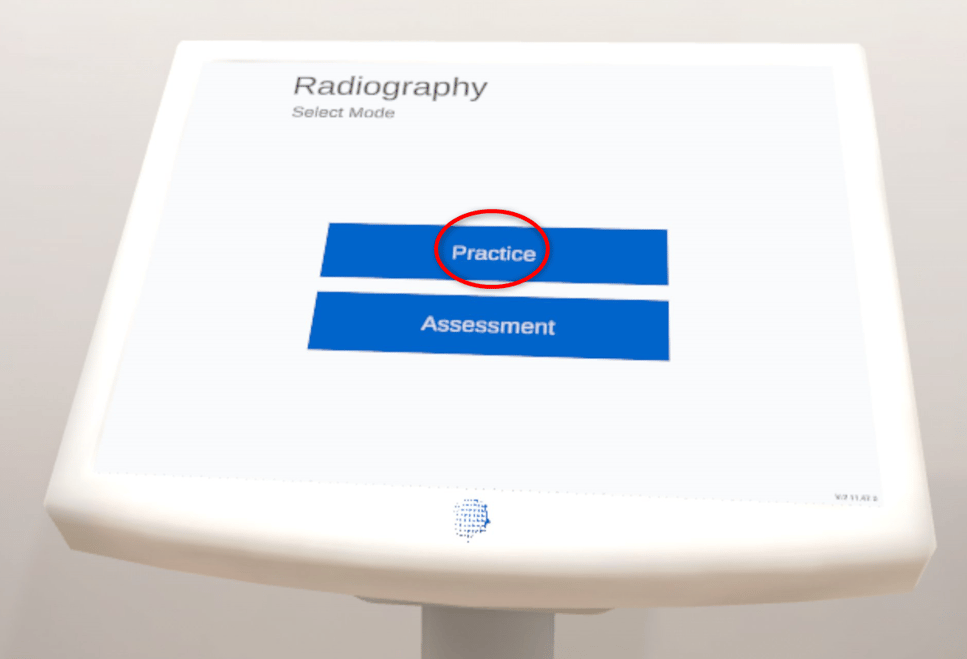
Depending on your institution's licences, you may see other simulations as well. Each appears as its own icon and title. Select the radiography icon.
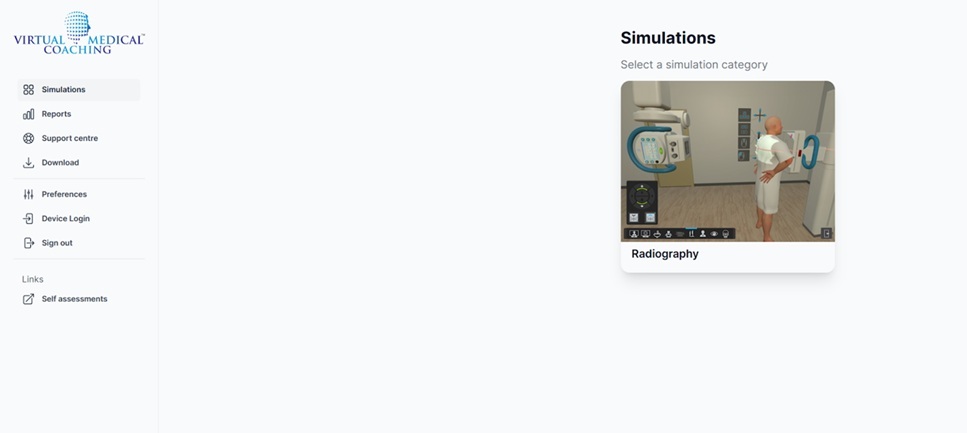
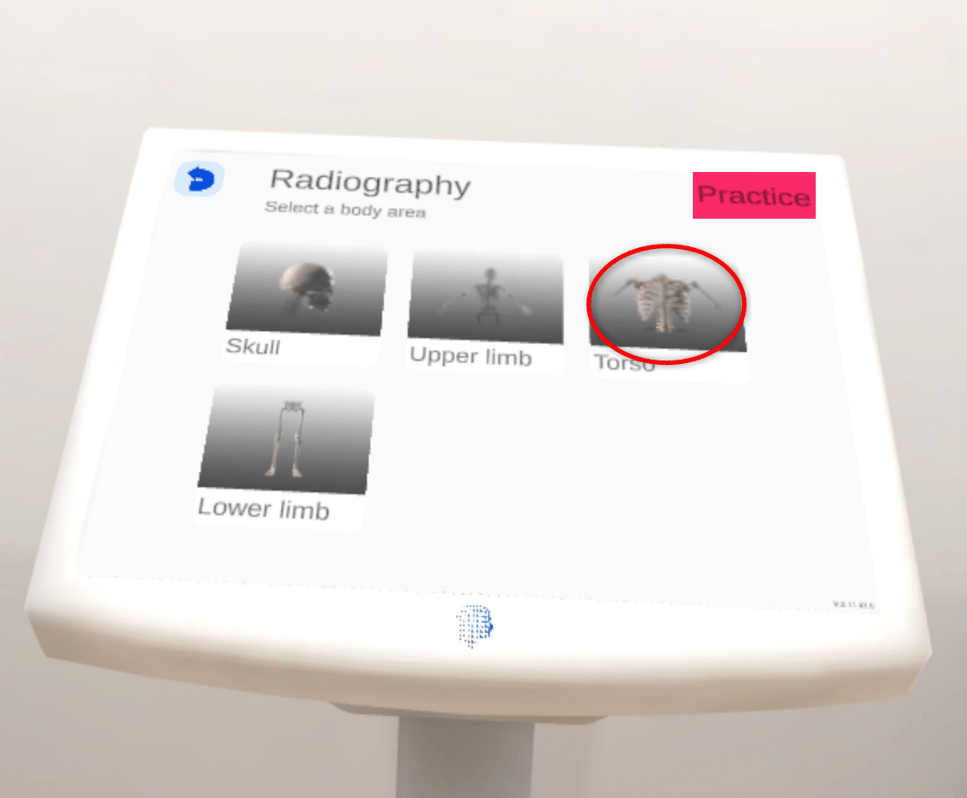
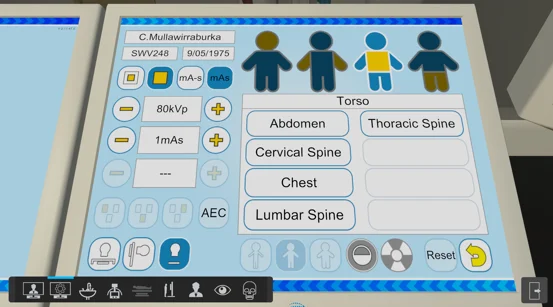
On the next screen, choose a body area to practise on: Skull, Upper Limb, Torso or Lower Limb.
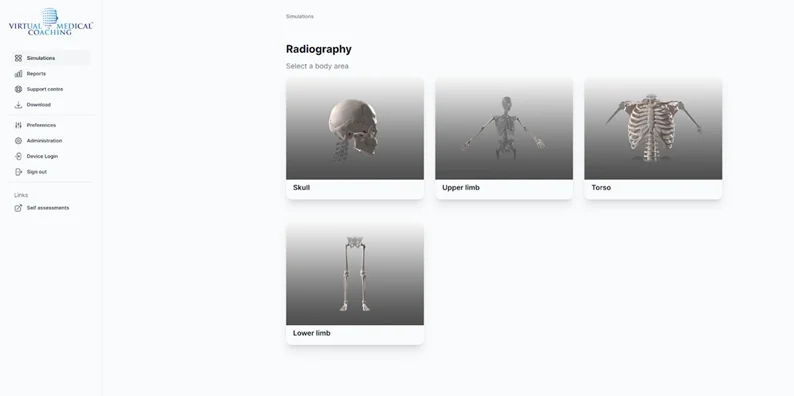
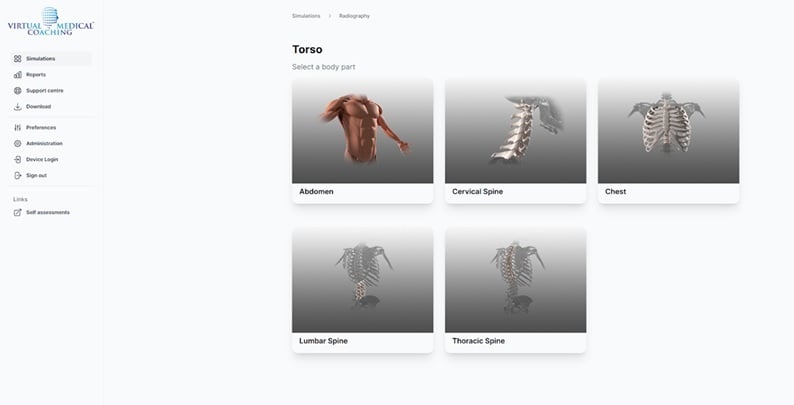
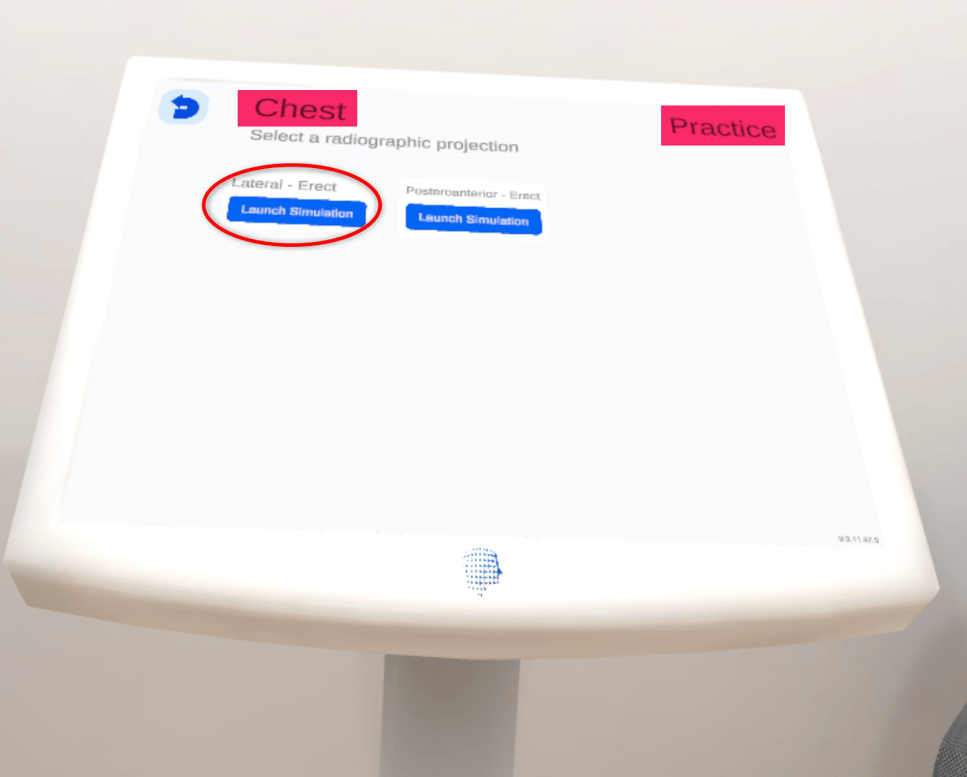
Then select a body part within that area. For example, select Torso to see Chest, Abdomen, Thoracic Spine or Lumbar Spine.
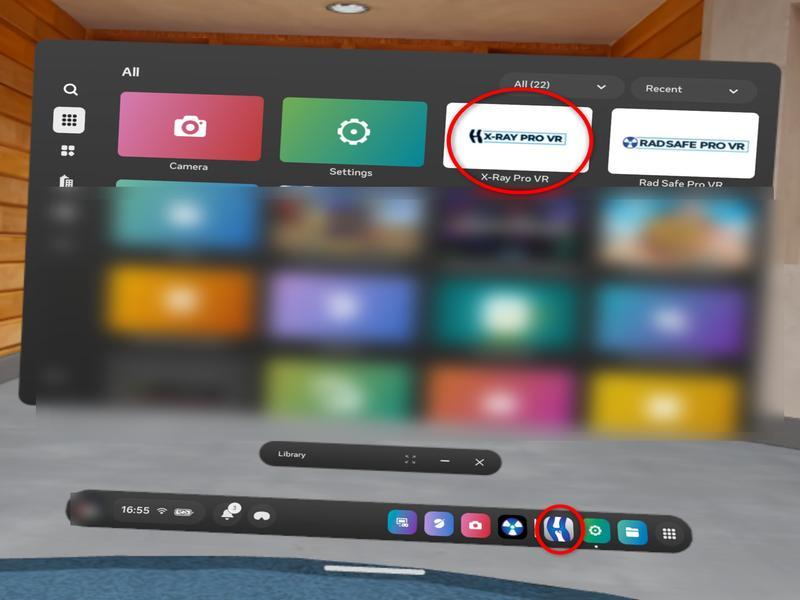
Standalone Meta Quest
X-ray Pro VR runs fully standalone on a Meta Quest that your institution manages. Your institution installs it through its headset management system, so you won't find it in the Meta Horizon Store. If you use your own Meta Quest at home, connect it to a PC with Link or Air Link instead.
Setting up headsets for standalone use is a job for your institution's IT team. Send them to What VR equipment will I need?
Once your institution has set up the headset:
Simulation interface
VRIn the headset
The simulation opens in your headset. You are placed inside the Radiography Suite, where you use your VR controllers to interact with the room.
DesktopOn your computer
The simulation opens inside the Radiography Suite. Depending on your computer, it may open straight away, or appear as this icon in your taskbar (Windows) or Dock (Mac). If it does, select the icon: 
Controls
VRControllers
Button layouts vary between headsets. Posters on the walls inside the VR room show the buttons for your headset, so check them when you start. Spend a few minutes getting used to your controllers before your first session.
HTC Vive and Vive Pro controllers:
- The top button teleports.
- The side buttons grip.
- The trigger points and presses with your VR index finger.
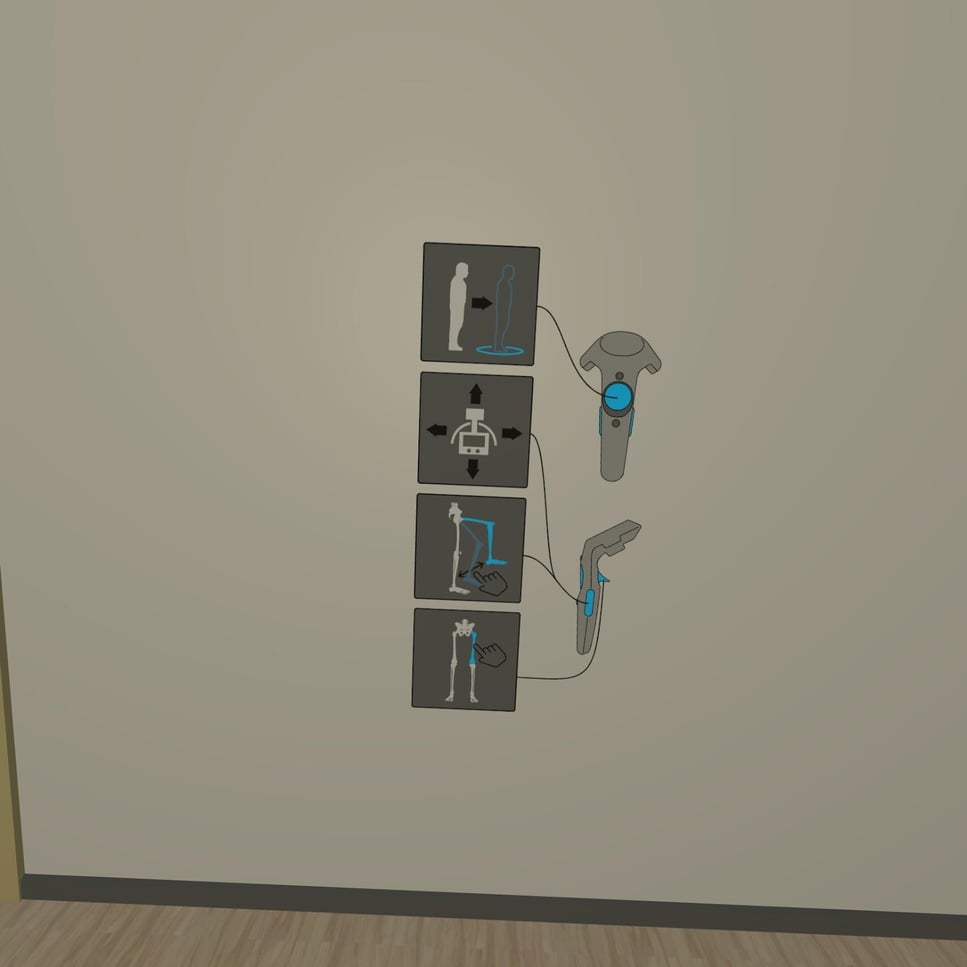
Meta Quest controllers: the example below shows a Quest 2 controller. Quest 3, 3S and Pro controllers don't have the ring, but the buttons are in the same places.
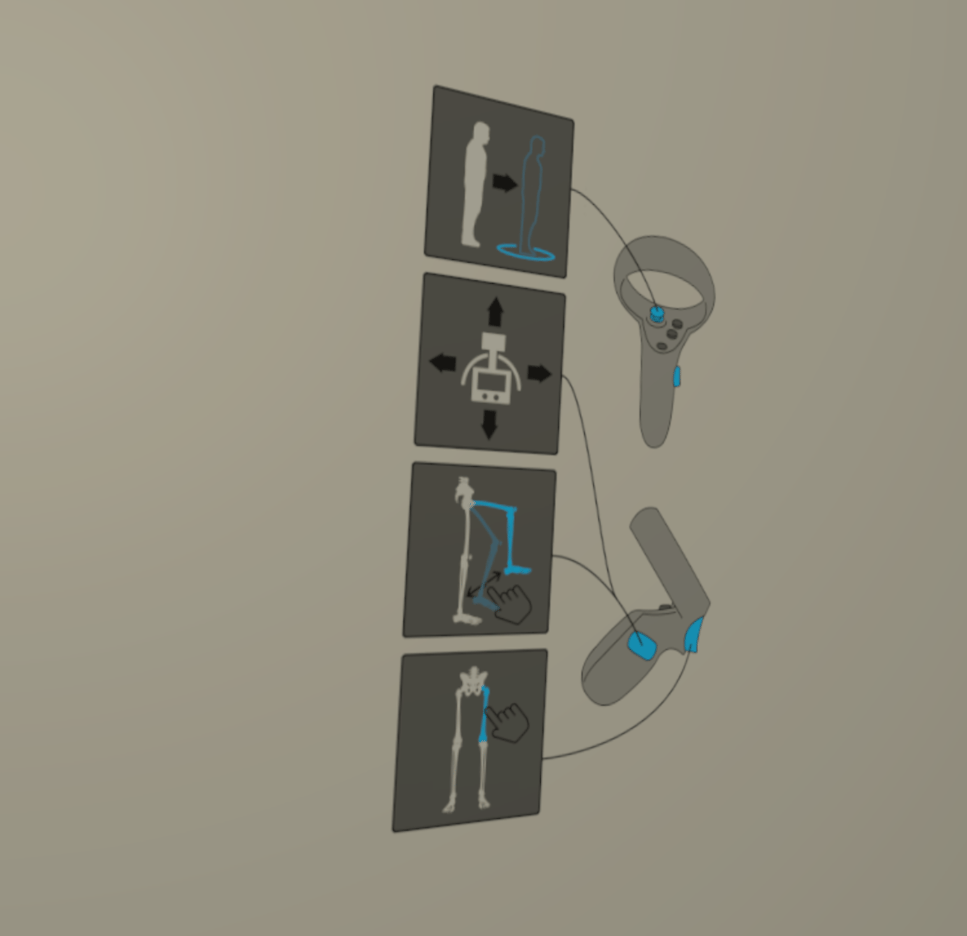
Valve Index and other headsets: use the posters on the walls inside the VR room.
DesktopKeyboard and mouse
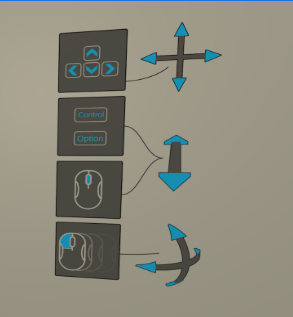
Use these controls to move around the room and zoom in and out.
Windows
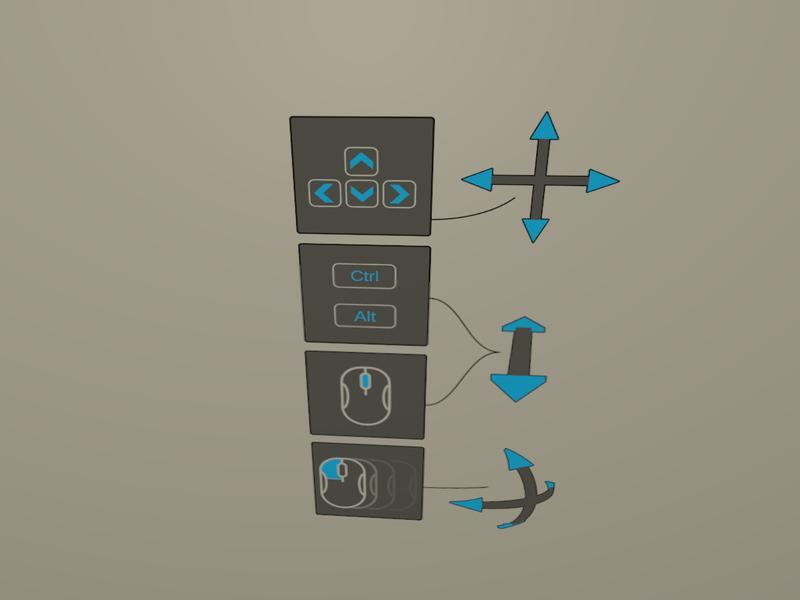
Mac
VR interactions
VRTeleporting
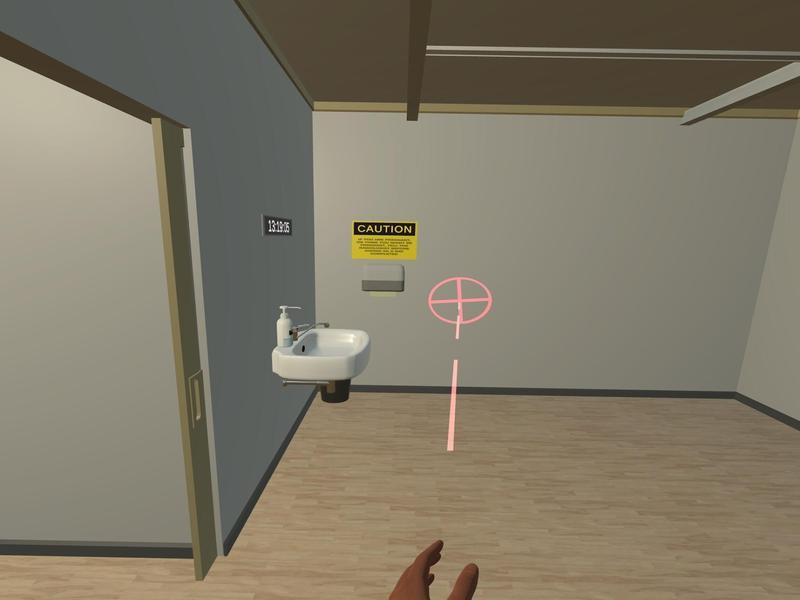
Teleporting lets you move around the room without walking, which is useful in a small space. You can also mix walking and teleporting.
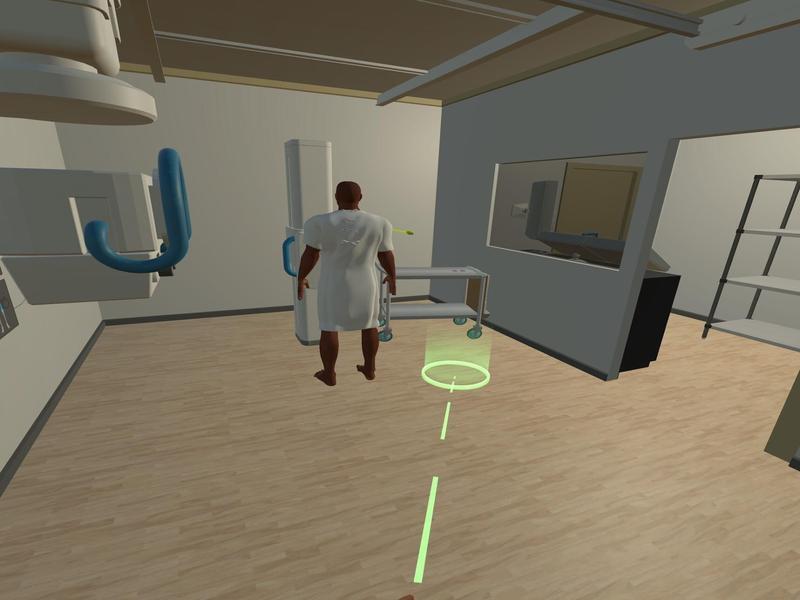
A red circle means you can't teleport there. You are usually pointing at a wall, an equipment tray or another blocked area. Point at a clear space on the floor instead.
VRGrabbing and moving objects
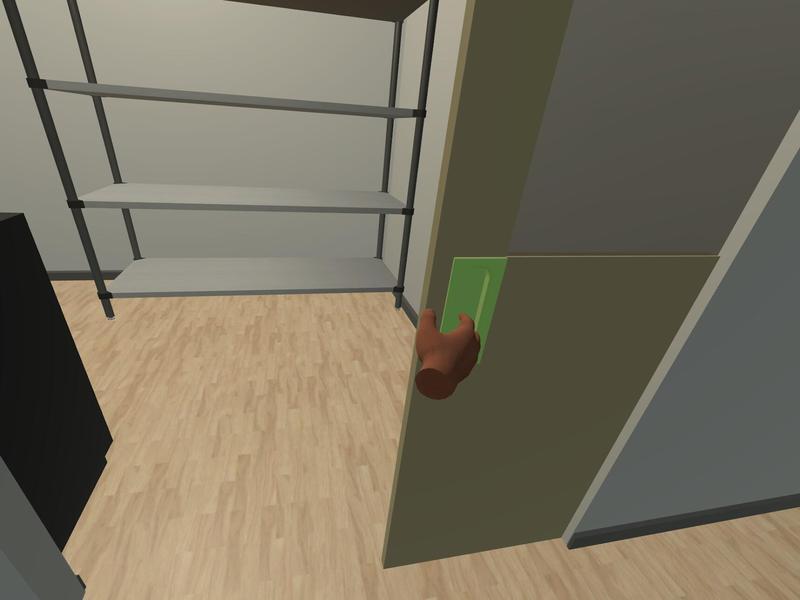
Gripping lets you handle the equipment and position the patient, as you would in a real clinical setting.
You use gripping to:
- move the X-ray tube
- position the patient
- remove jewellery
- pick up cassettes and markers
- remove or replace the digital grid
- collimate, by turning the dials on the front of the X-ray tube
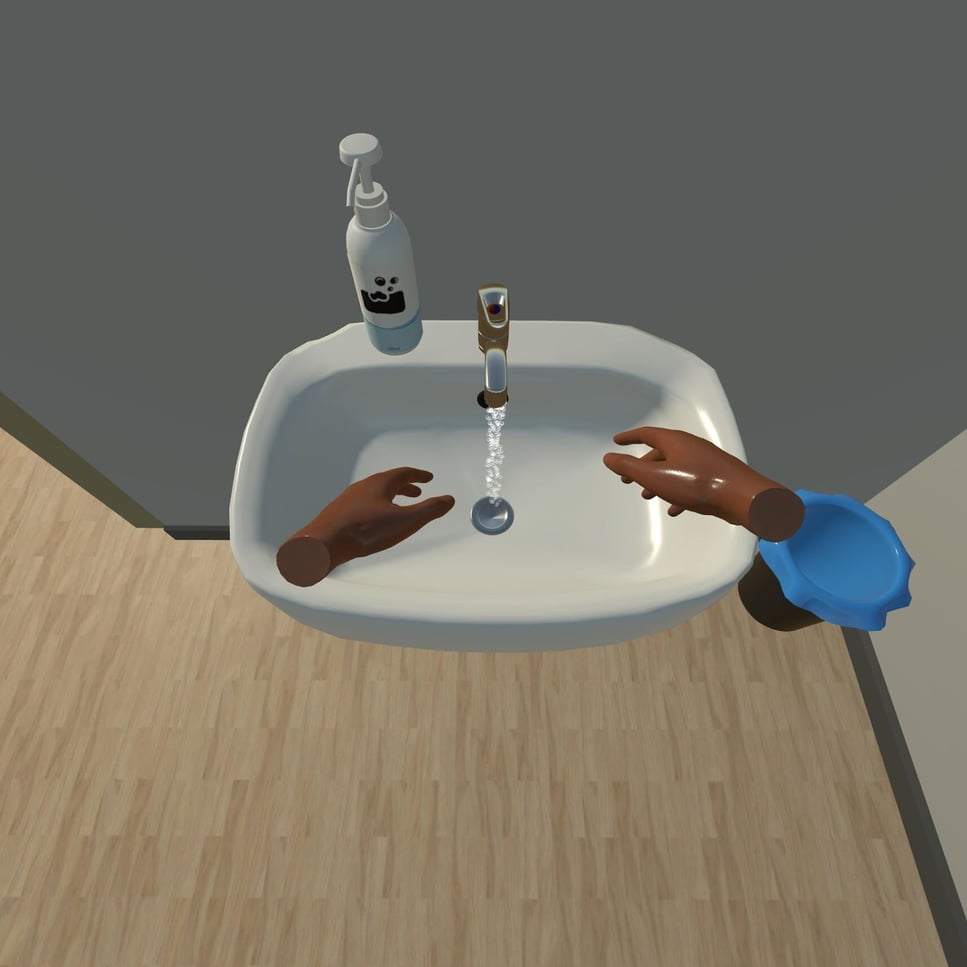
- wash your hands at the sink
VRPointing and pressing
Point and press to use buttons and to explore anatomy in the room.
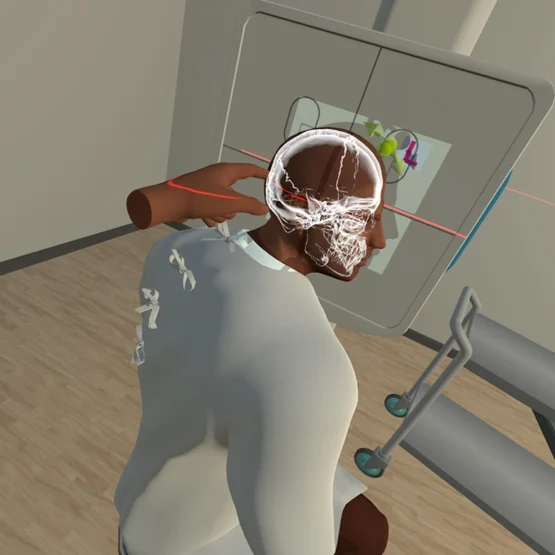
VRHighlighting skeletal anatomy
To see the skeleton under the skin, point at the skin and press with your controller. The anatomy underneath is highlighted, so you can connect surface landmarks with the structures beneath. This is VR only.
The anatomy doesn't appear on its own. You need to point and press each time.
Control room
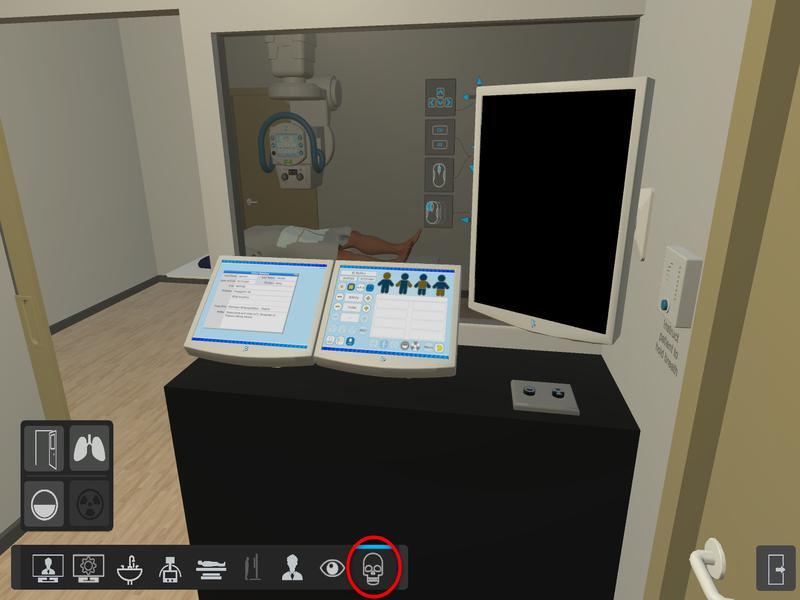
The control room is where you check the patient details and set your exposure factors.
- VRWalk or teleport to the control room.
- DesktopSelect the skull icon to go to the control room.
Patient information
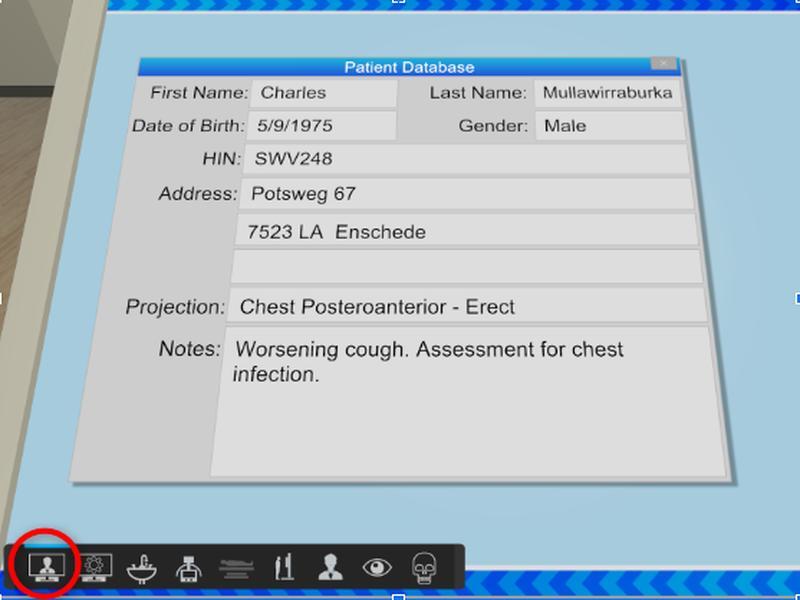
Check the patient identification and clinical notes, and make sure they make sense for the projection. On Desktop, select this icon to open them.
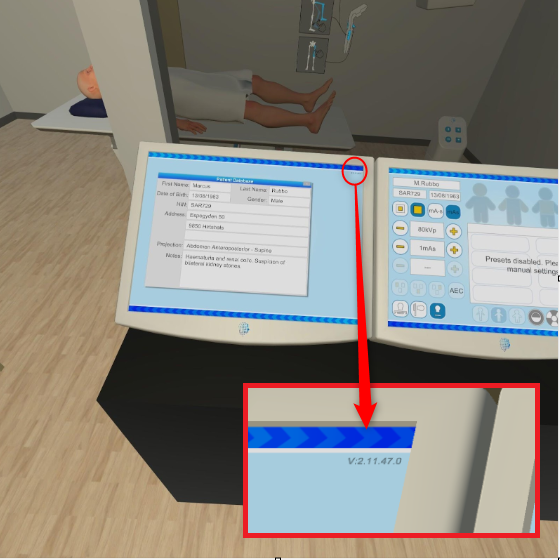
Check your version number. The version of the software you are using is shown at the top right of the left-hand monitor. It should match the version in the Downloads section of the Web Portal. If it doesn't, you need to update. On your own computer you can update it yourself. On a university computer, tell your lecturer or your IT team.
Control panel settings
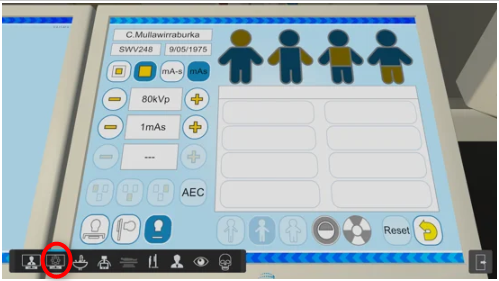
In both VR and Desktop, you set your exposure and other technique factors on the right-hand blue monitor. On Desktop, select this icon to open it.
You can choose a preset, or set these yourself, or both: kVp, mAs, focal spot size, AEC on or off, AEC chambers and density, and the detector.
- VRYou won't feel the tube lock into the detents, and you won't see the SID.
- DesktopThe green alignment lights won't switch on, and you won't see the SID. There's more about the green lights later in this manual.
The detector buttons are, from left to right: Table Bucky, Erect Detector and Free Cassette.
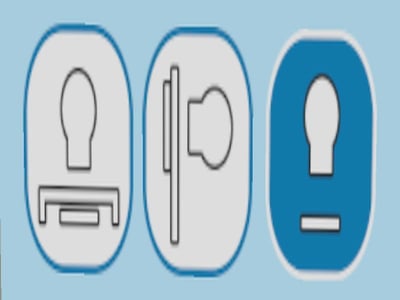
This short video shows how the SID works with the erect detector and Bucky:
Handwashing
- VRGrip the tap, then the soap, then the towel to play each animation.
- DesktopSelect the sink icon to play the handwashing animation.
Equipment and patient in VR
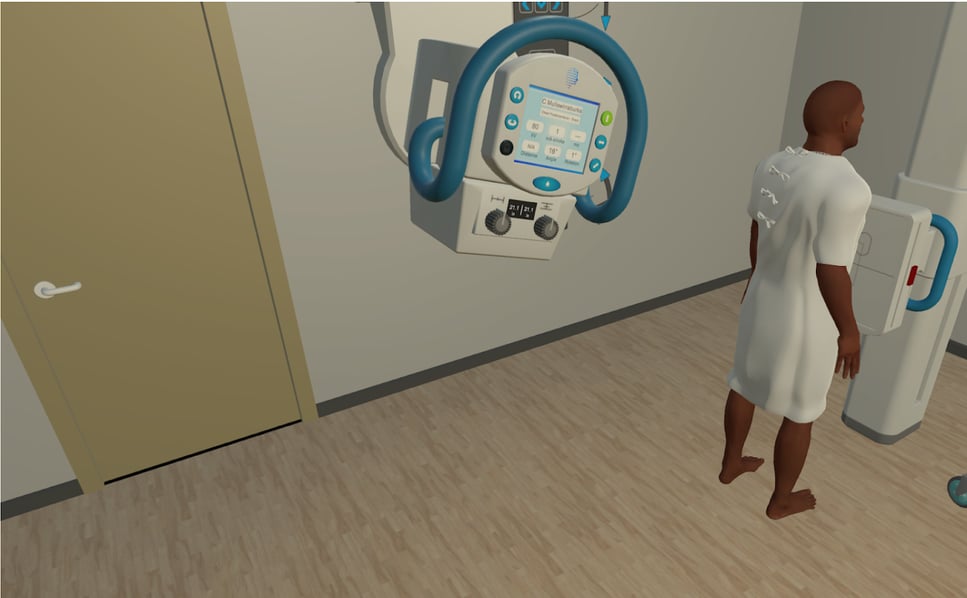
VRPoint and grip to use the tube, cassettes and markers, and to position the patient.
VRTube directional controls
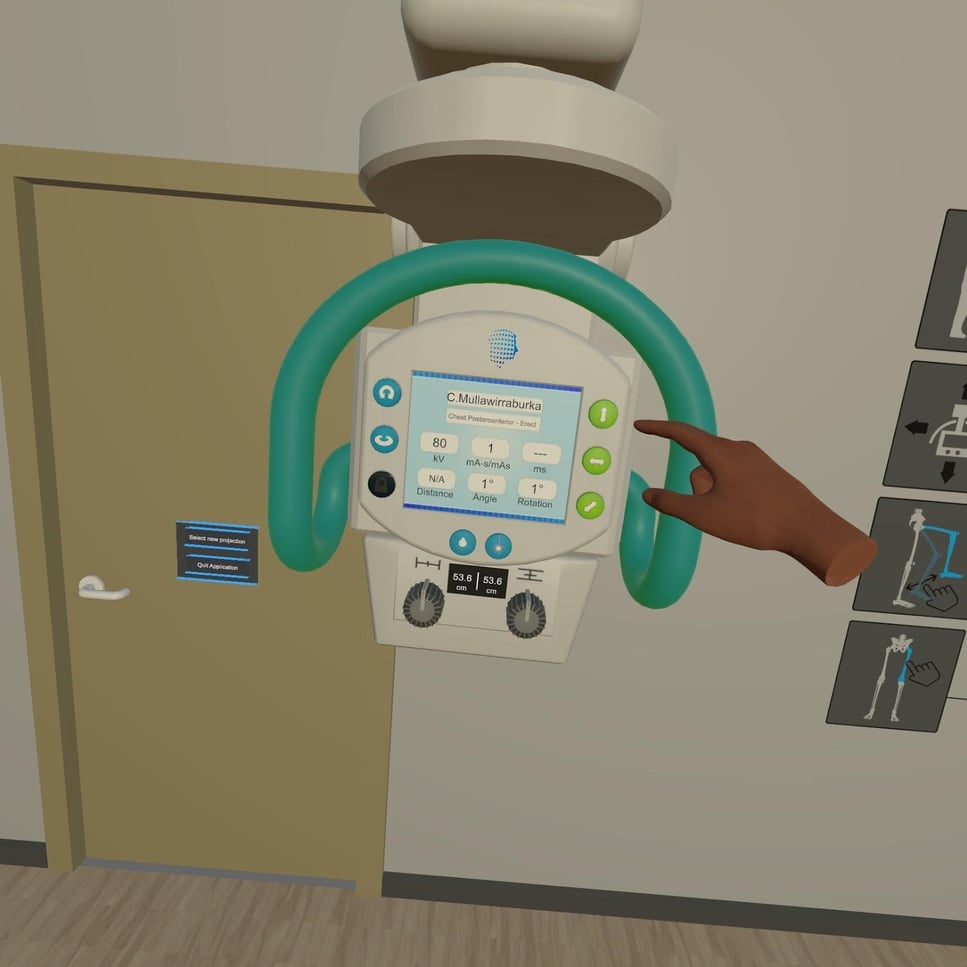
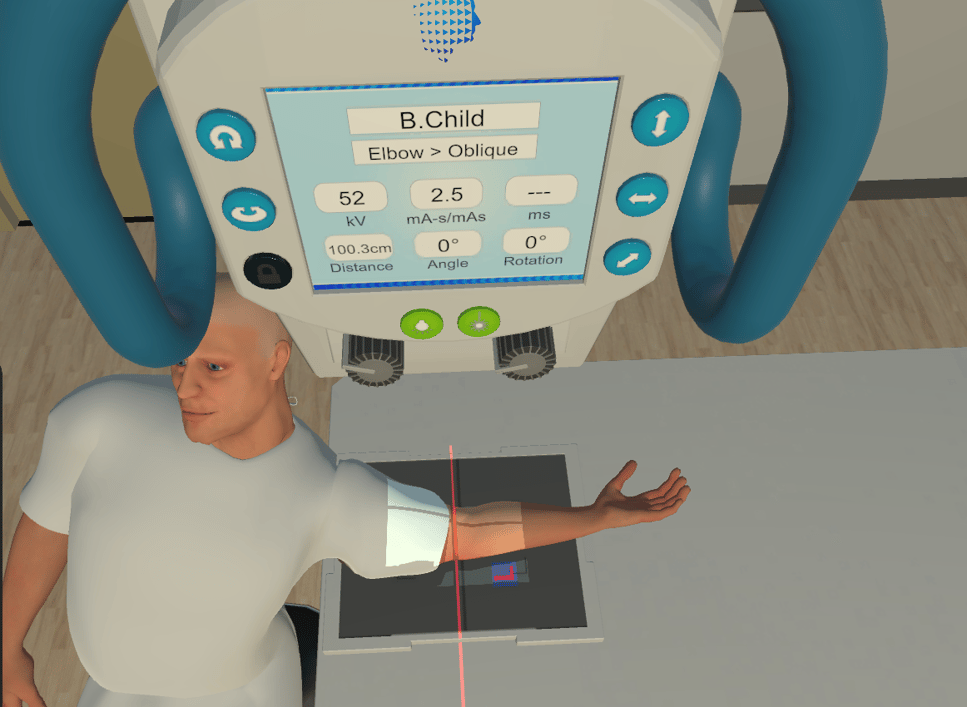
When you first log in, all the tube's directional buttons are locked (blue) except the vertical button, which is unlocked (green). This means you can move the tube up and down, but in no other direction.
Press the bulb button to switch on the light. You can switch the light and laser on separately or together to check your alignment. Turn the two dials to collimate. To turn the light box, rotate it by hand.
Tap another directional button to turn it green, and you can then move the tube in that direction. Turn all the buttons green for a free tube. Only one rotation direction (the left-hand one) can be used at a time.
VRStanding Bucky
To change the height, grip the blue handle and move it up or down.
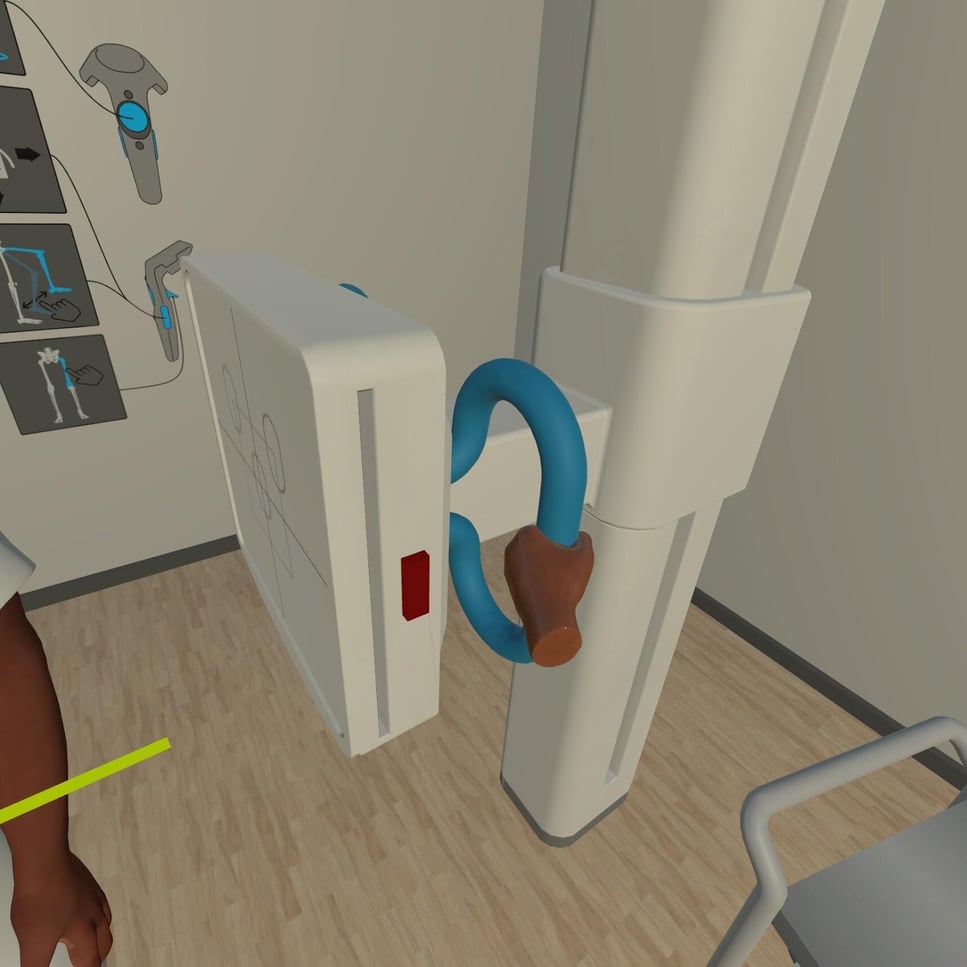
To remove the digital grid, press the red button on the side of the erect detector.
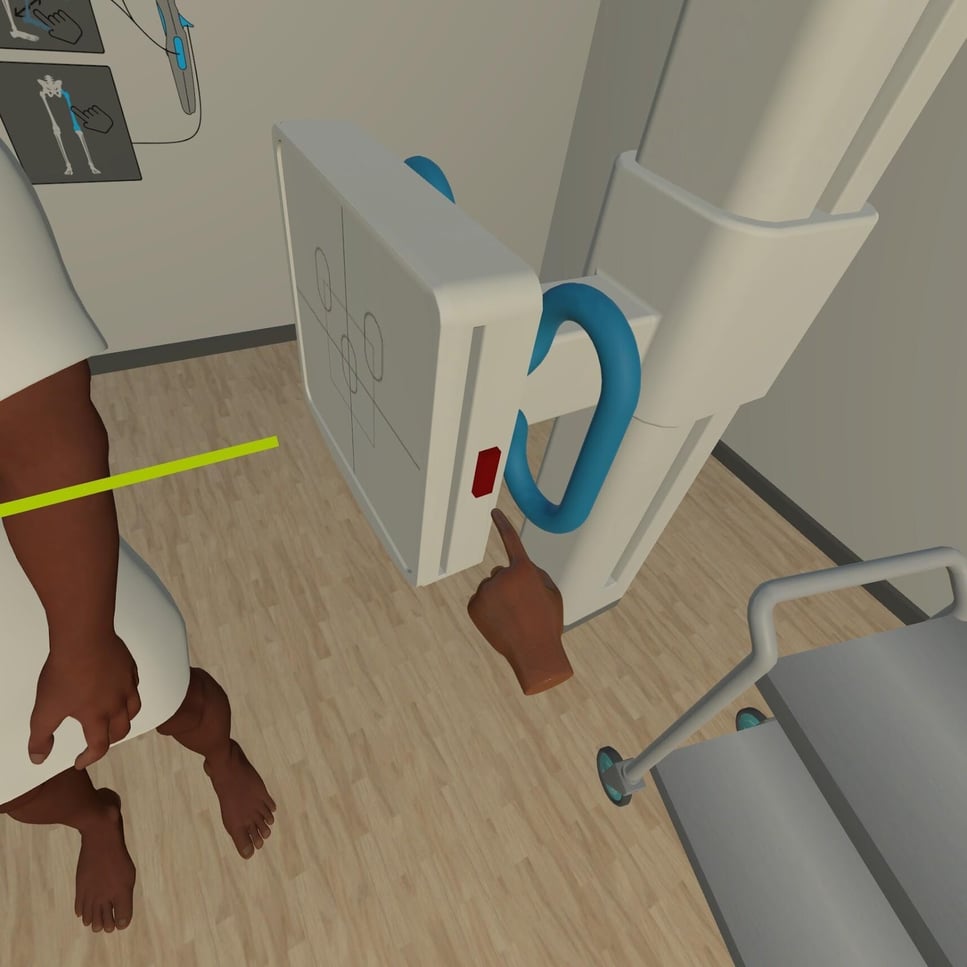
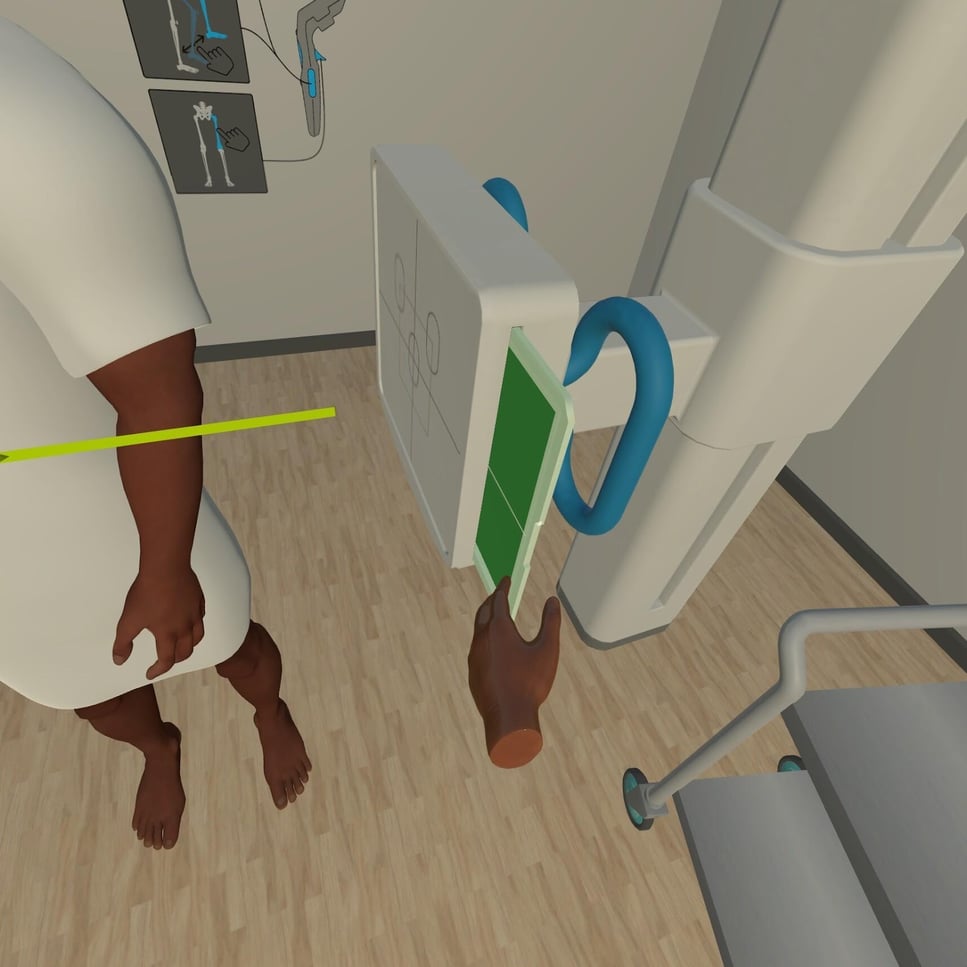
The grid slides a third of the way out. Grip it and place it on the silver trolley. To put it back, push it into the empty slot until it clicks into place.
VRTable Bucky
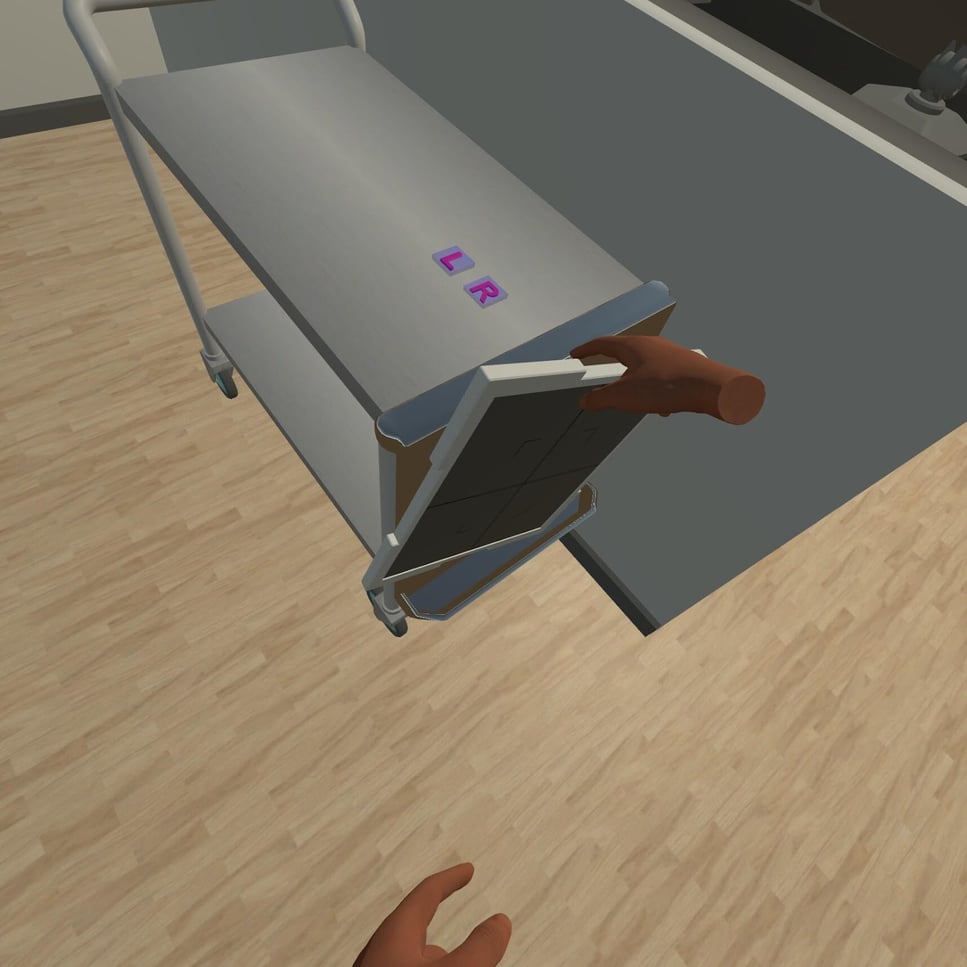
Grip the table Bucky and pull it out from under the table.
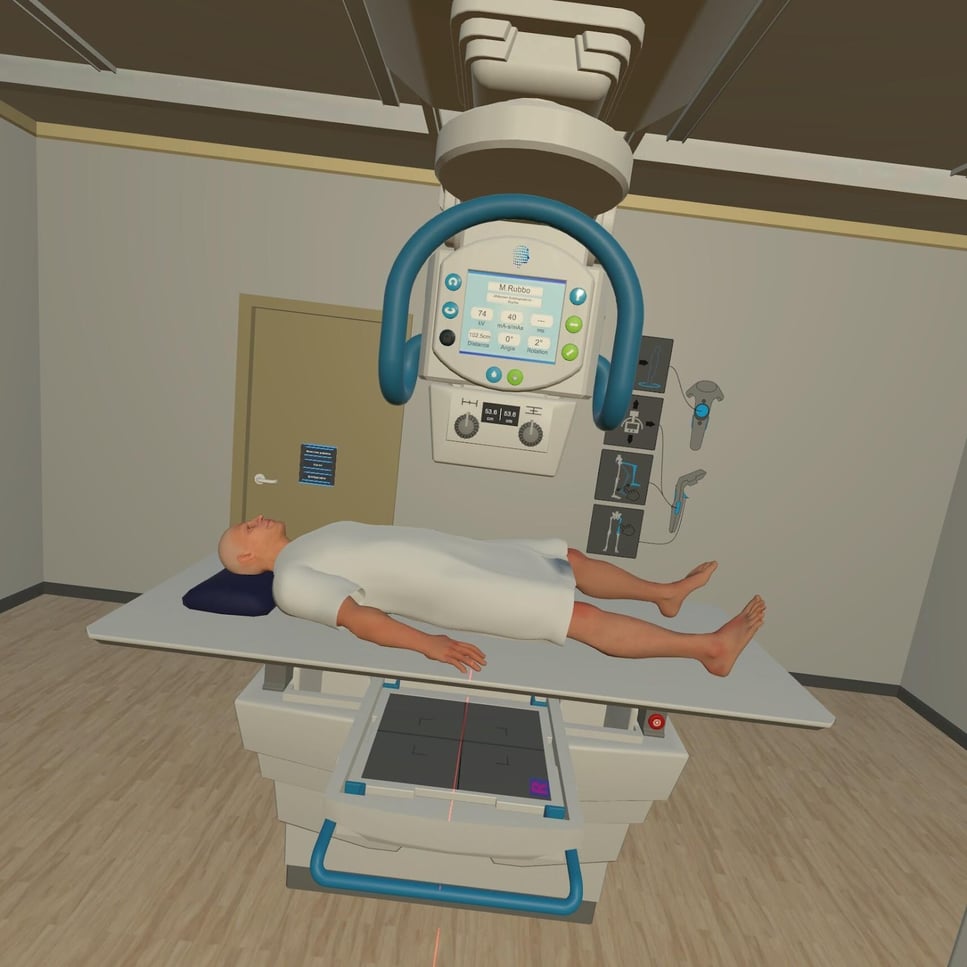
A cassette and side markers are on the silver trolley. Pick up the cassette and insert it into the Bucky, landscape or portrait. You can place your side markers on the cassette.
VRAdjusting the X-ray table
To raise or lower the table, point at the square up or down buttons on the post at the end of the table, and press.
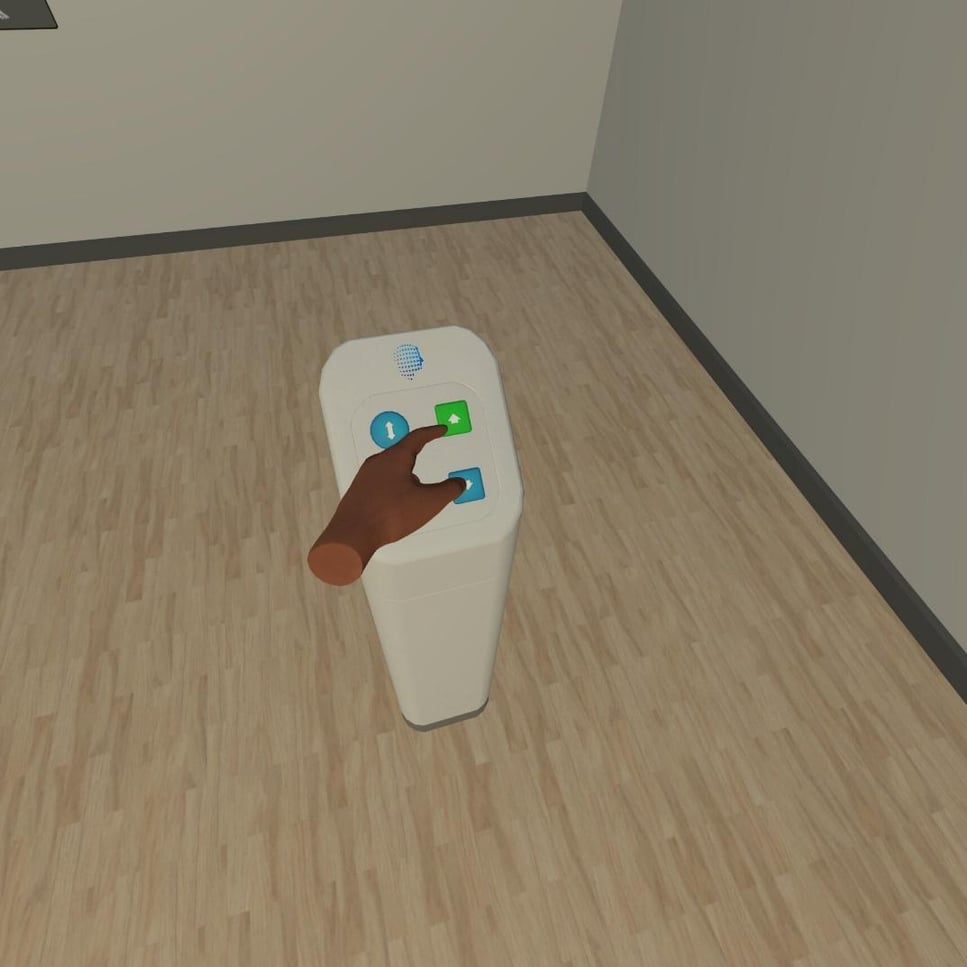
VRFloating top table
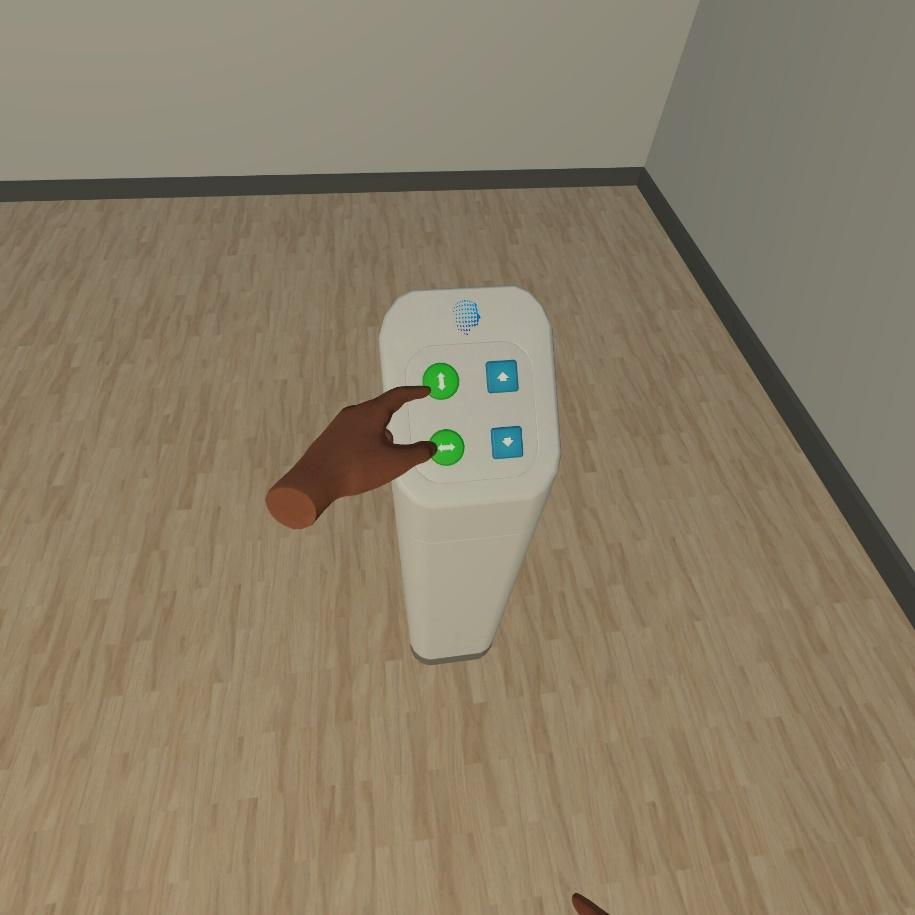
Use the round buttons on the same post as the height buttons.
- Each button moves the table top in one direction.
- You can press them one at a time or together.
- After pressing a button, grip the table to move it.
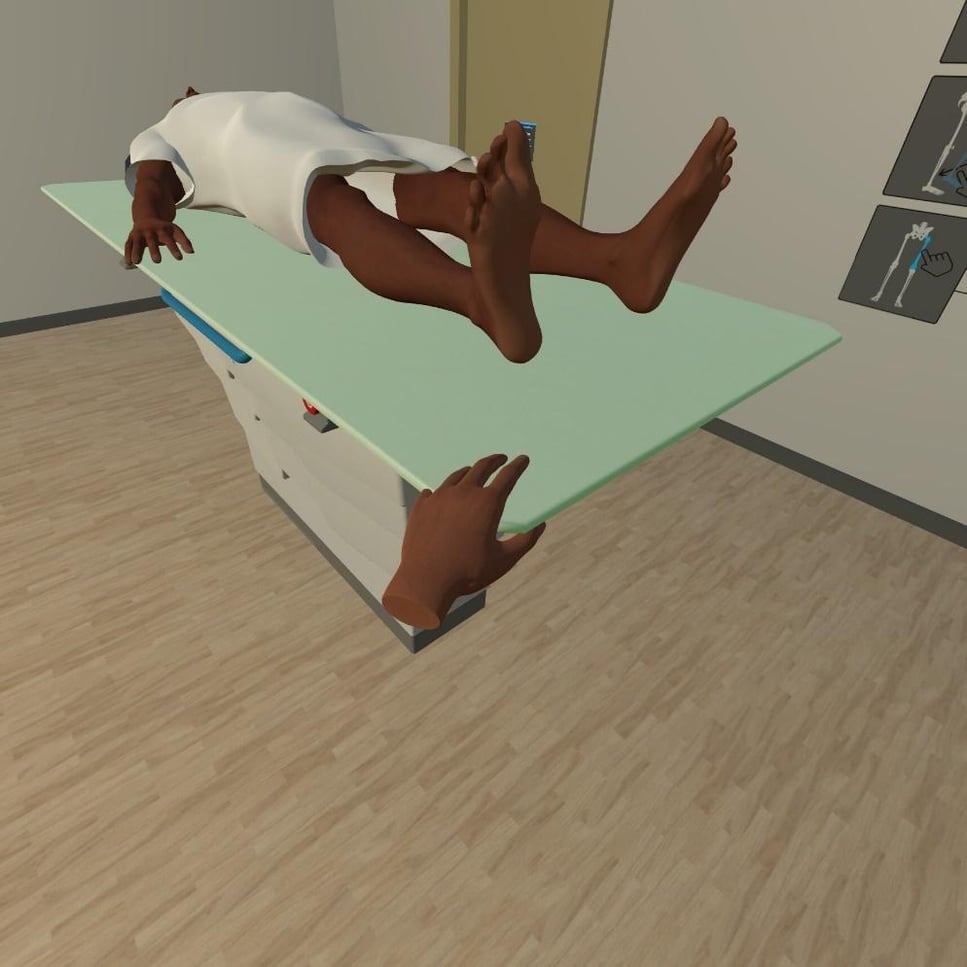
The table highlights green when it can move.
VRFree cassette
For projections that use a free cassette, the cassette is already on the X-ray table, often near or under the right body part, but not in the right position. Put one hand flat on it. When it turns green, press the grip button on that controller and move it into position.
VRPositioning the patient
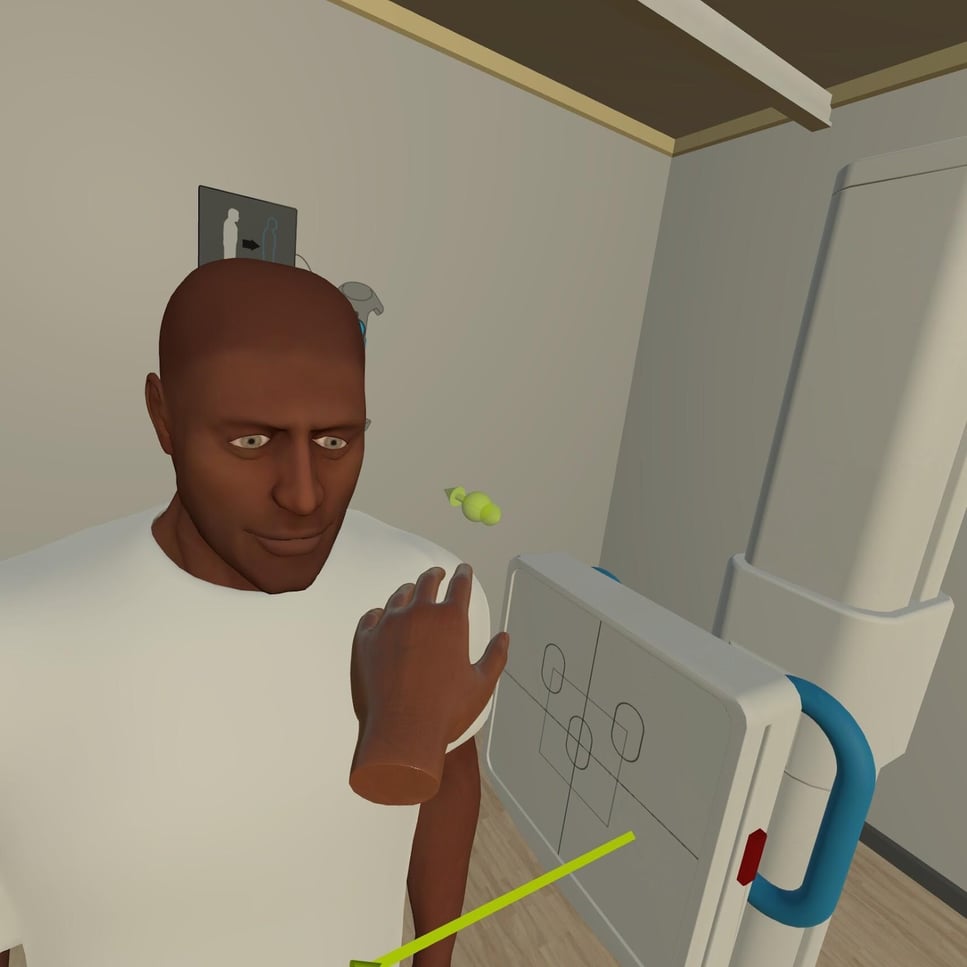
When your hand gets close to a part of the patient you can move, green arrows appear. They show:
- the angle and direction the patient can move
- where to place your hands
- which body part will rotate
Each projection has its own set of movements. In this example, the patient can be rotated at the shoulder. For large movements, where a real patient would need to take a step, you get a slider to push instead.
Equipment and patient on Desktop
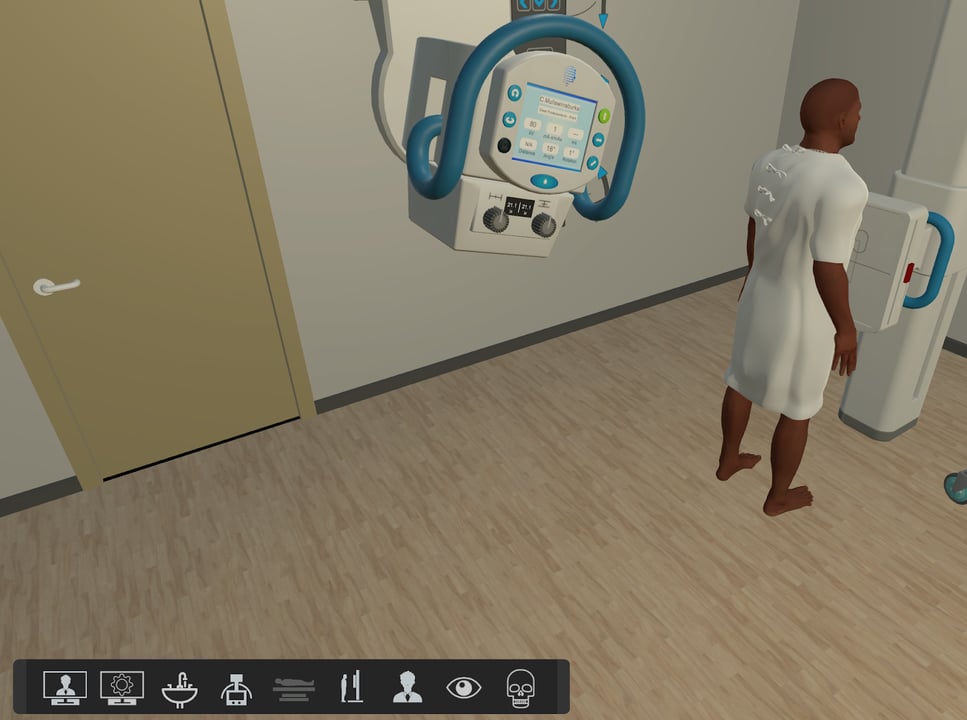
DesktopSelect the icons on the icon tray to use the equipment and move the patient.
DesktopTube directional controls
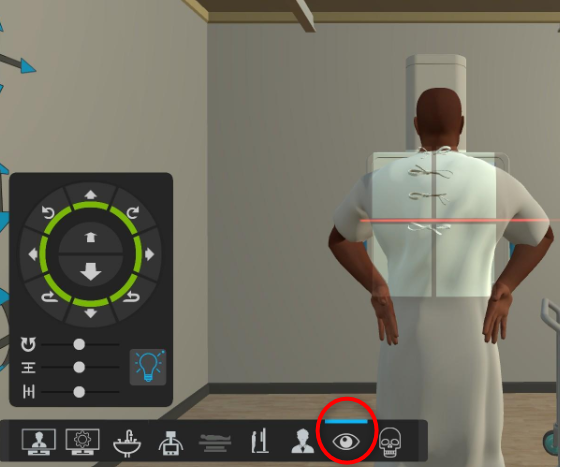
Select the X-ray tube icon. Use the bulb button for the light and the dials to collimate.
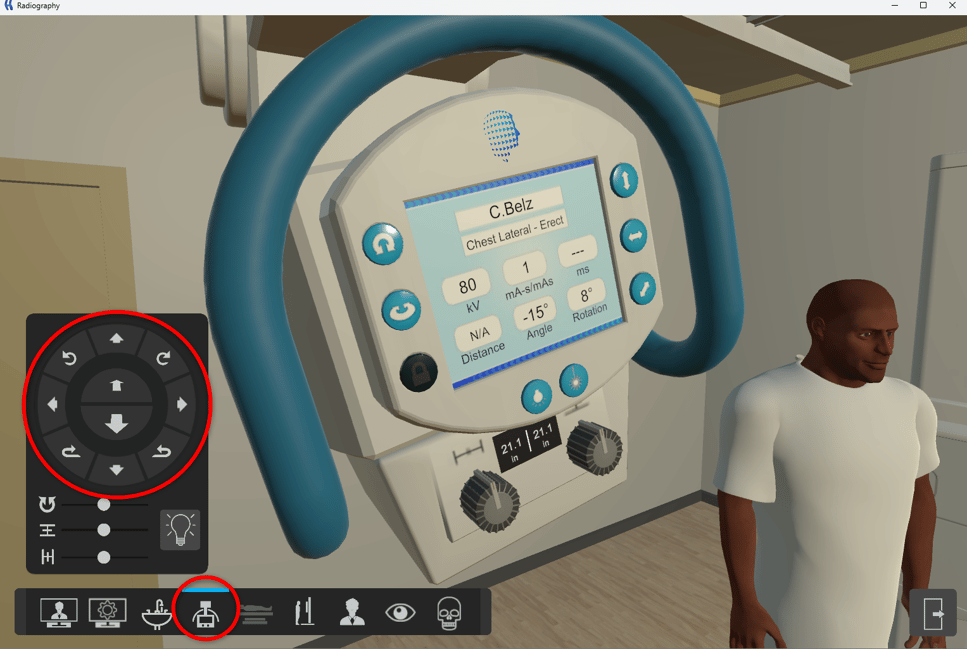
The eye icon lets you look out from the tube. This is often the best view for collimating and seeing exactly where your patient is. In this view you can also switch on the light, rotate the light box and collimate.
DesktopErect detector
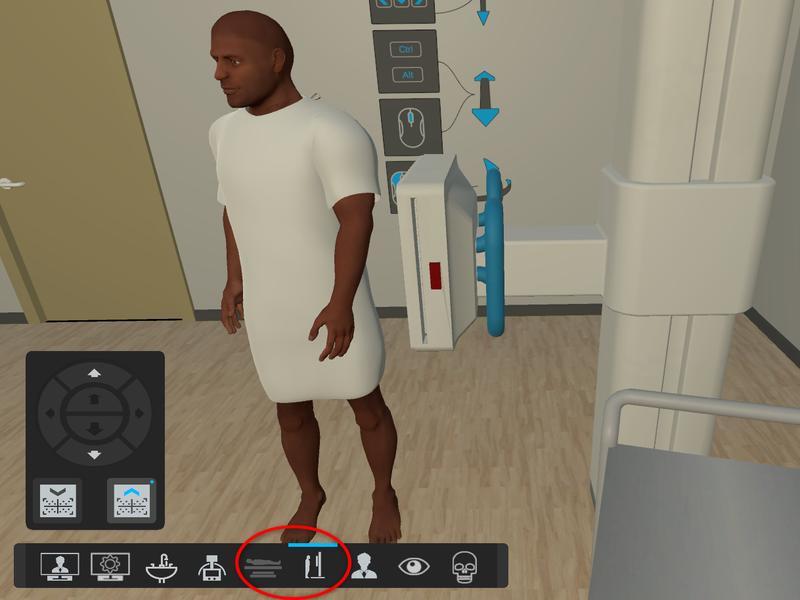
The projection you choose decides whether the room has a table Bucky or an erect detector. When the erect detector icon is active, the X-ray table icon is greyed out.
You can raise and lower both the X-ray table and the erect detector, insert the cassette into the table Bucky, and remove and replace the erect detector's digital grid.
DesktopTable Bucky
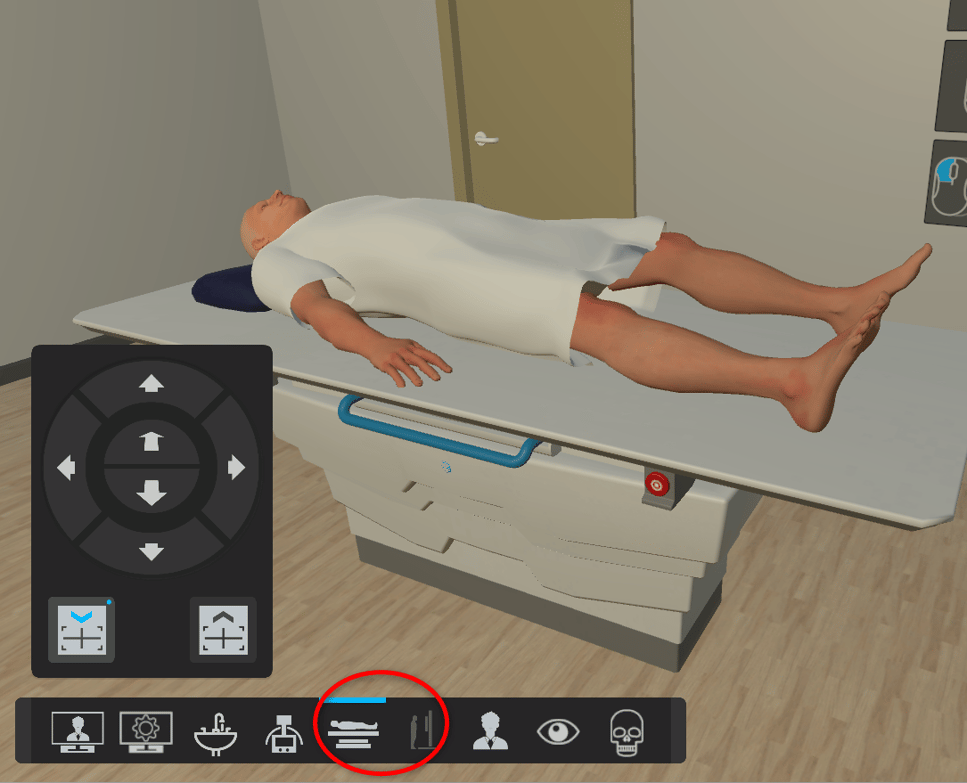
When the table Bucky icon is active, the erect detector icon is greyed out.
DesktopX-ray table and floating top
Select the X-ray table icon on the icon tray. A ring of arrows opens, with two cassette images.
- The arrows move the table.
- The cassette arrows show whether a cassette is in the Bucky. Blue shows the current state. In the picture above, the blue arrow shows there is no cassette. Select the grey arrow to insert one; it turns blue and the other turns grey.
To centre the table Bucky for projections such as AP Abdomen, use the green circle lights as your detents. This short video shows how:
DesktopFree cassette
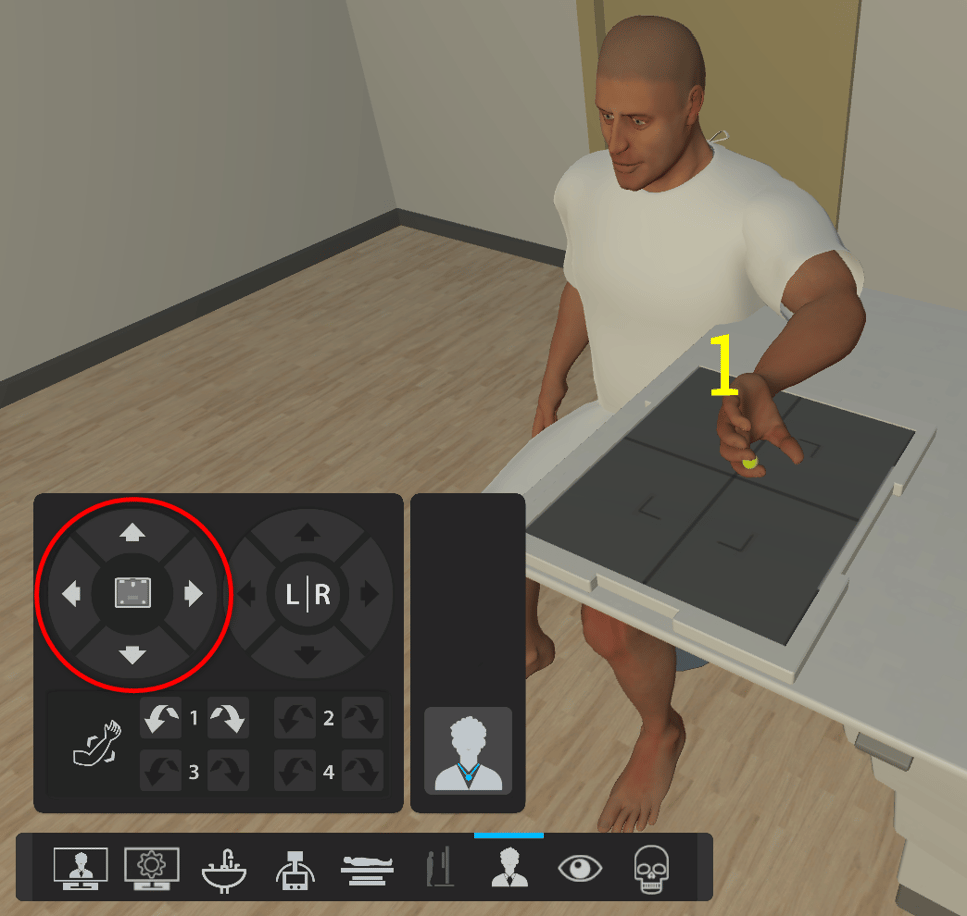
For projections that use a free cassette, the cassette is already on the X-ray table, often near or under the right body part, but not in the right position. Move it with the arrow buttons on the cassette icon in the patient view.
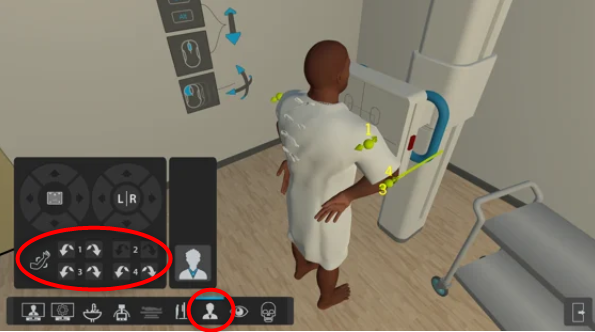
DesktopPositioning the patient
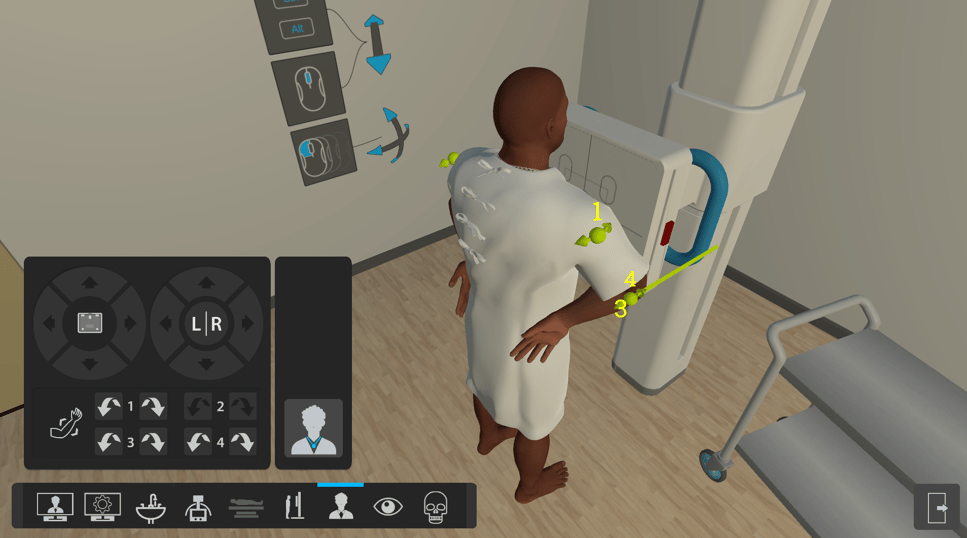
Select the patient icon on the icon tray to open the movement view. The numbered arrows match the movements you can make. You can also add a side marker here and adjust its position.
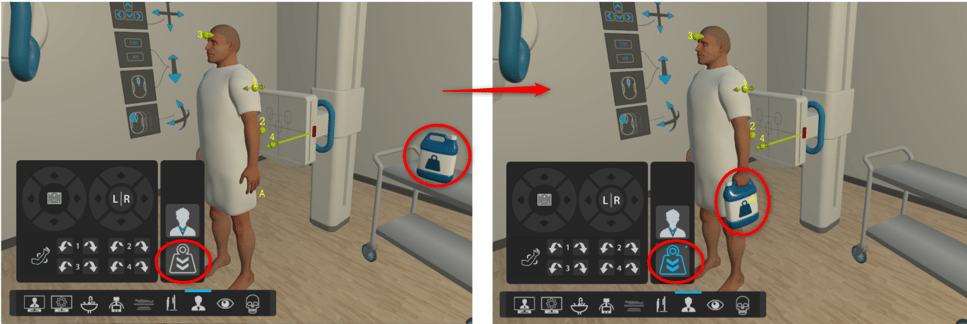
Jewellery and weight
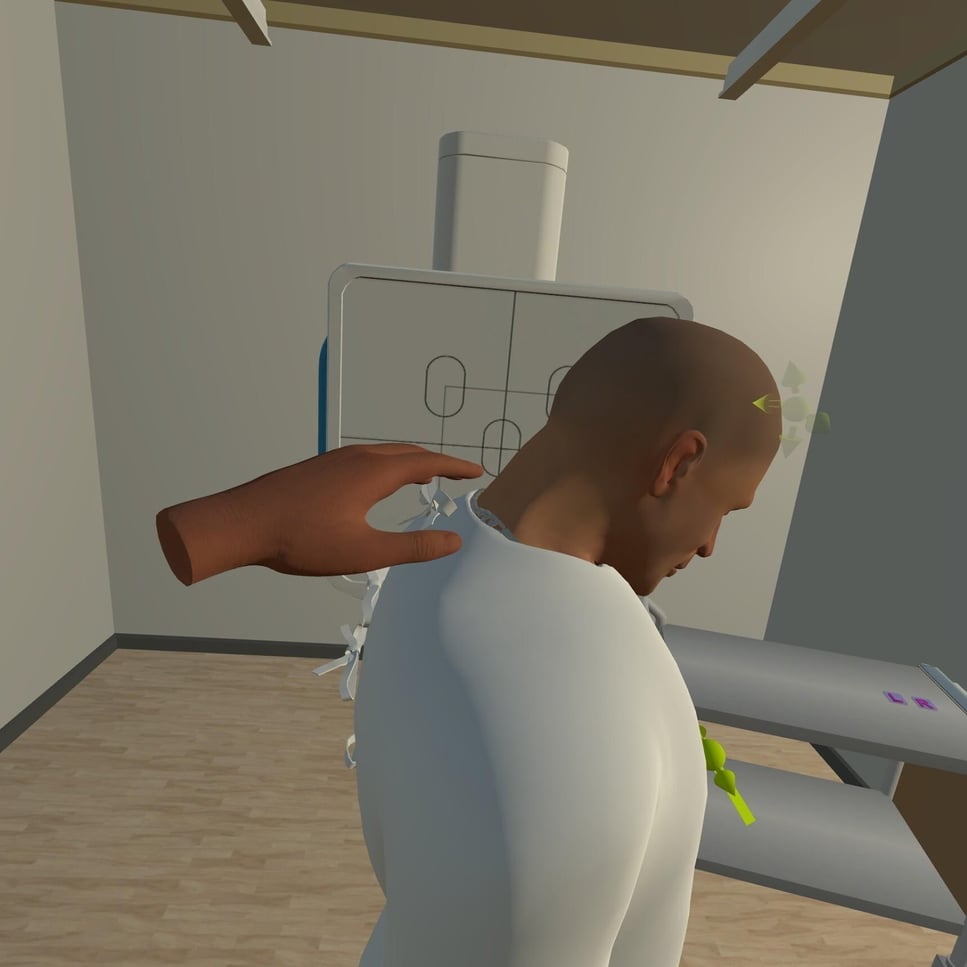
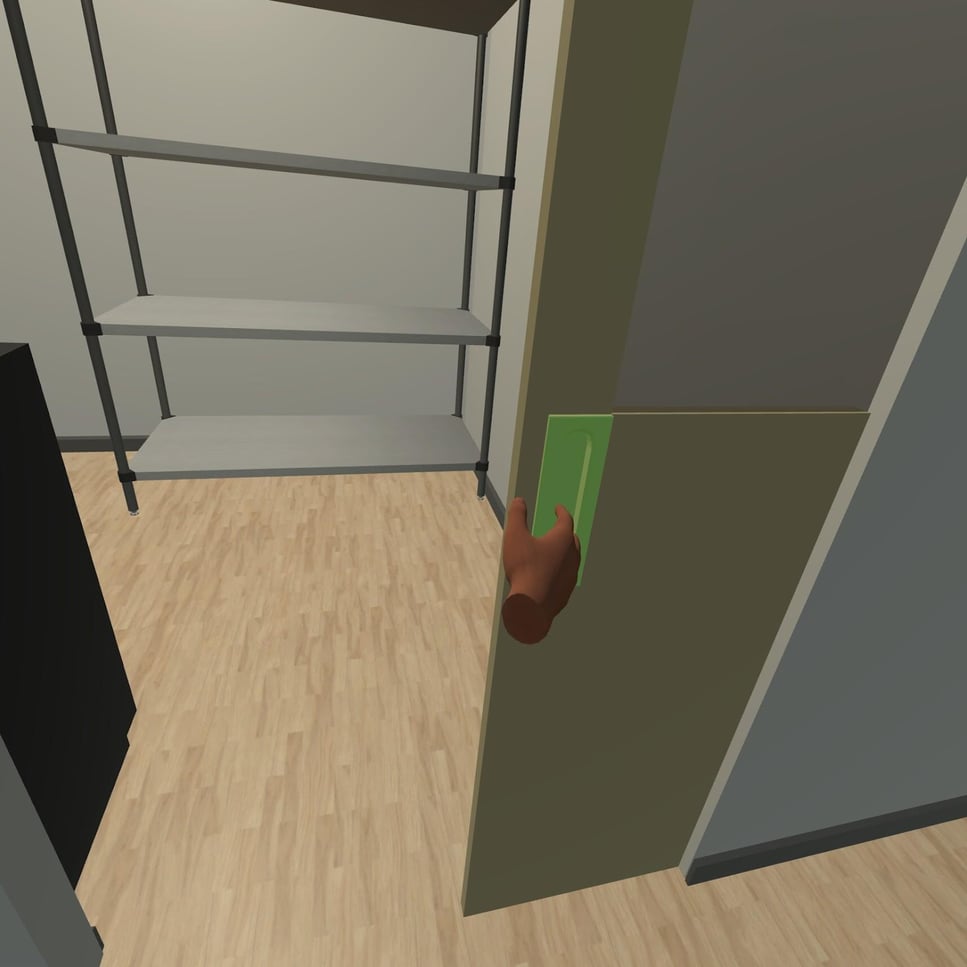
VRRemoving jewellery
Touch the jewellery and press the grip button. It disappears.
DesktopJewellery and weights
Select this icon on the icon tray to open the patient view, and remove any jewellery the patient is wearing. Not every patient wears jewellery.
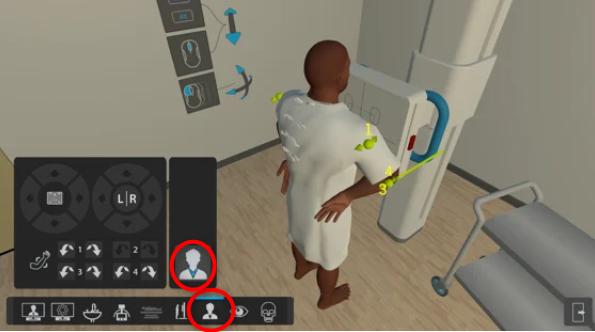
If the projection needs the patient to hold a weight, you add it here too.
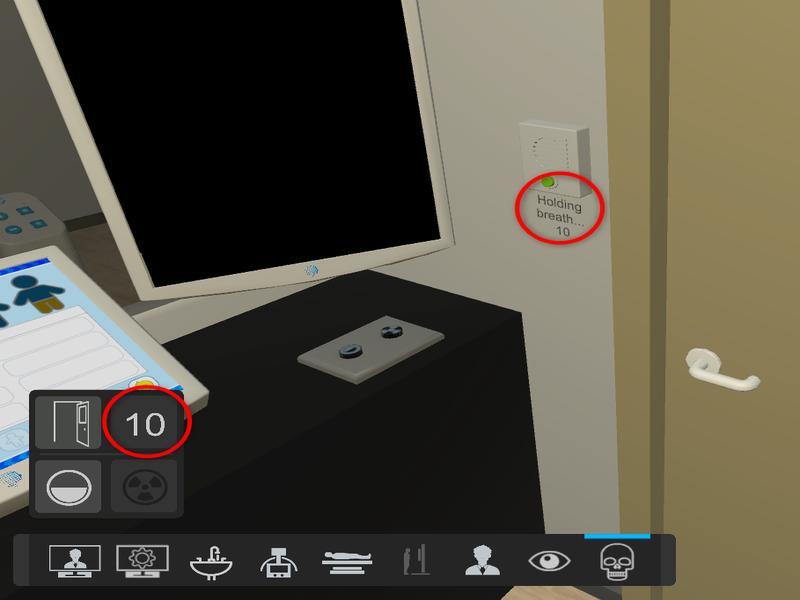
Closing the door and suspending respiration
You need to be in the control room for both.
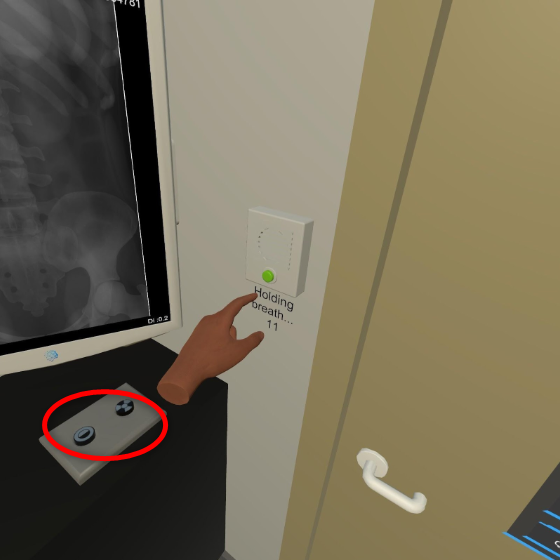
VRIn the headset
Close the door by hand. To ask the patient to suspend respiration, press the button on the wall beside the black monitor.
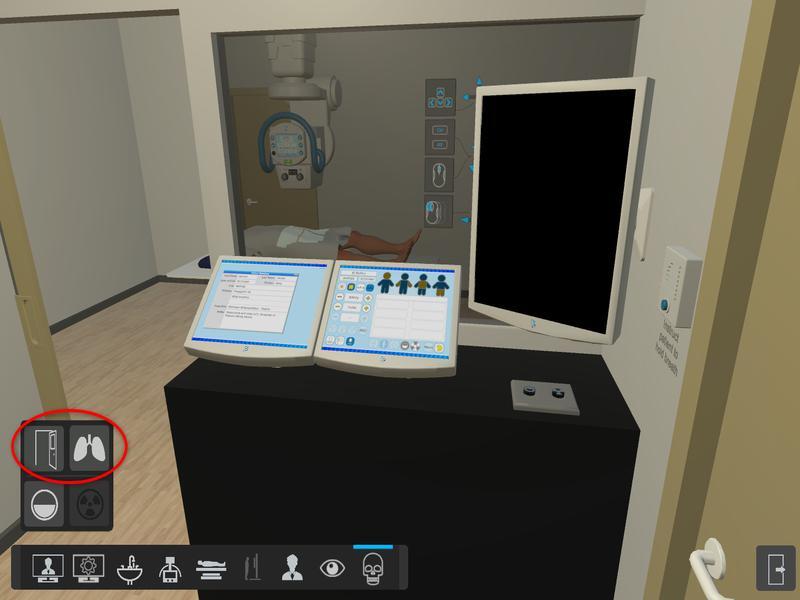
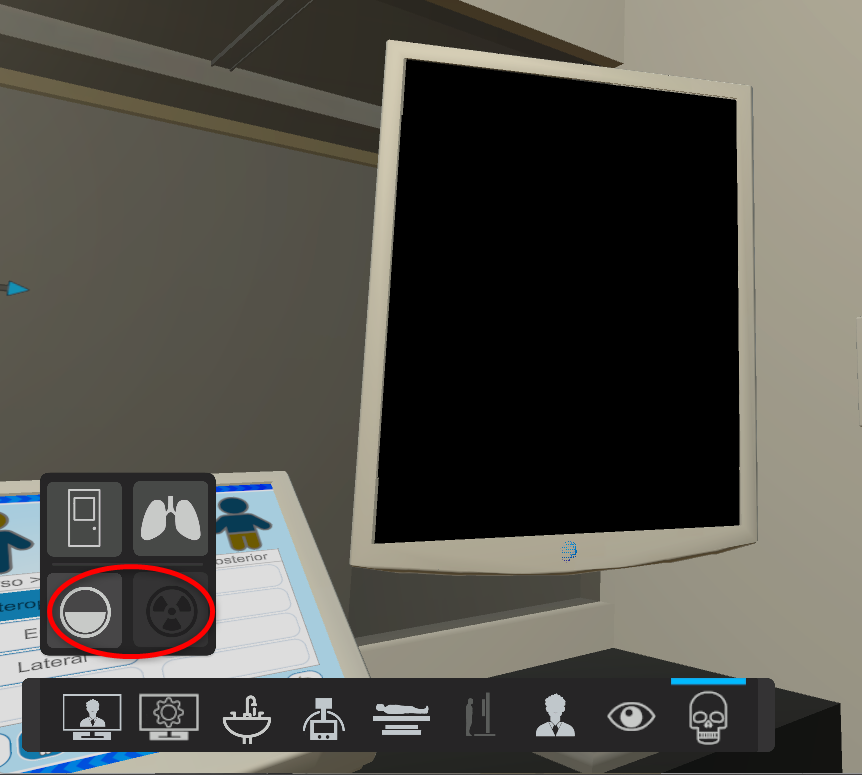
DesktopOn your computer
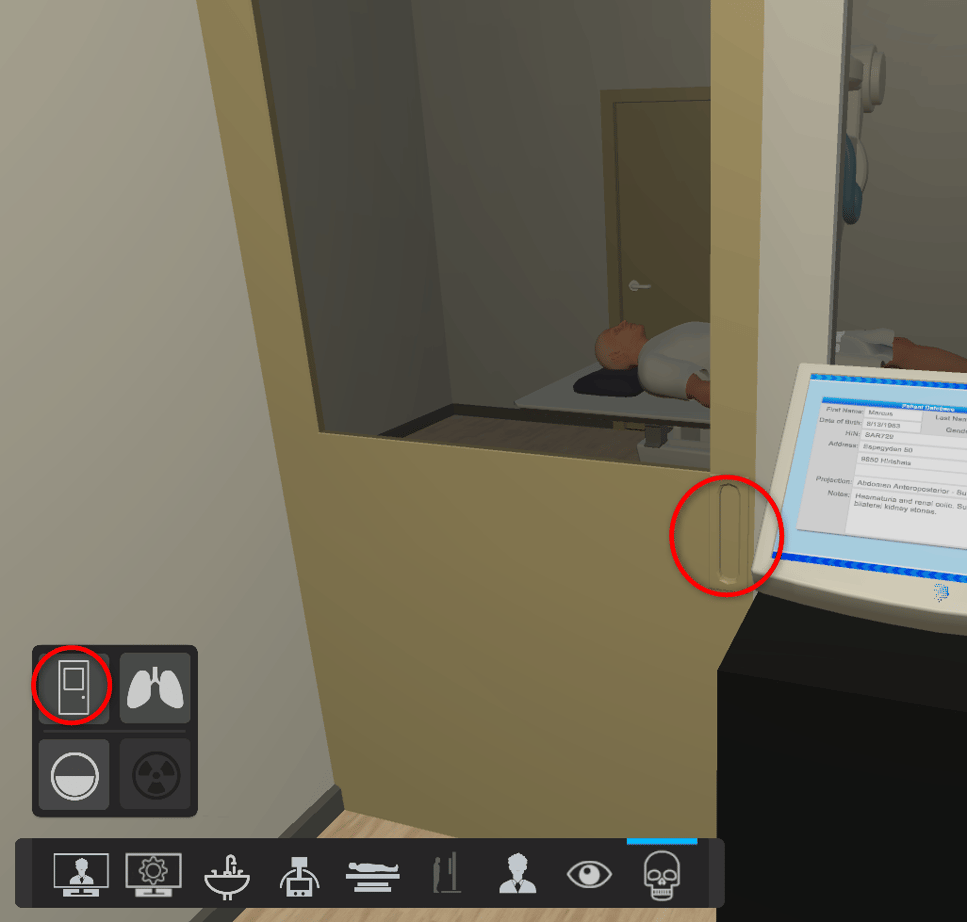
The door starts open and respiration is not suspended. The door and lungs icons show this.
Taking images
You need to be in the control room.
- VRPress Prepare, then Expose, under the monitor.
- DesktopUnder the skull icon, select Prepare, then Expose.
Reviewing and adjusting the radiograph
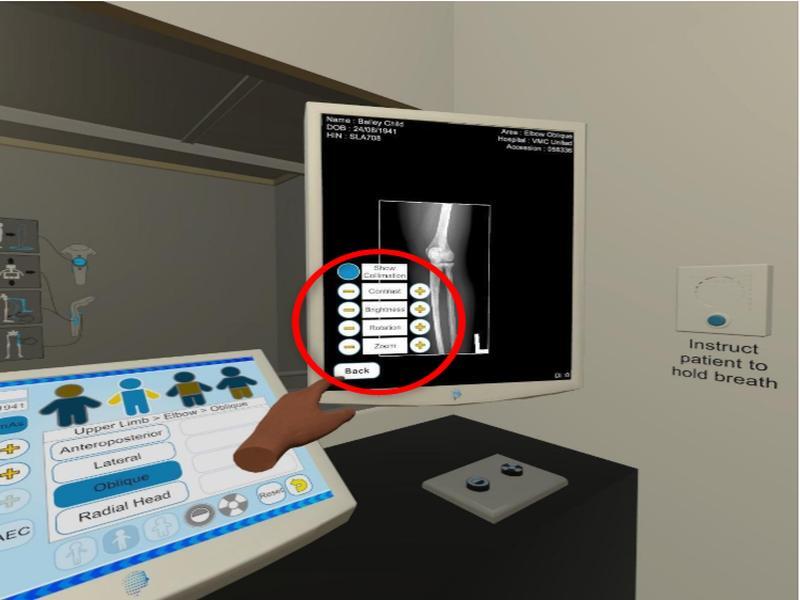
Once you have your radiographs, use the menu button on the screen to adjust:
- collimation region
- contrast
- brightness
- rotation
- zoom
These adjustments are for viewing only and are not saved. The Deviation Index (DI) is also shown on screen for reference.
Exit menu
When you're happy with your images, use the Exit menu to take another projection or quit.
VRIn the headset
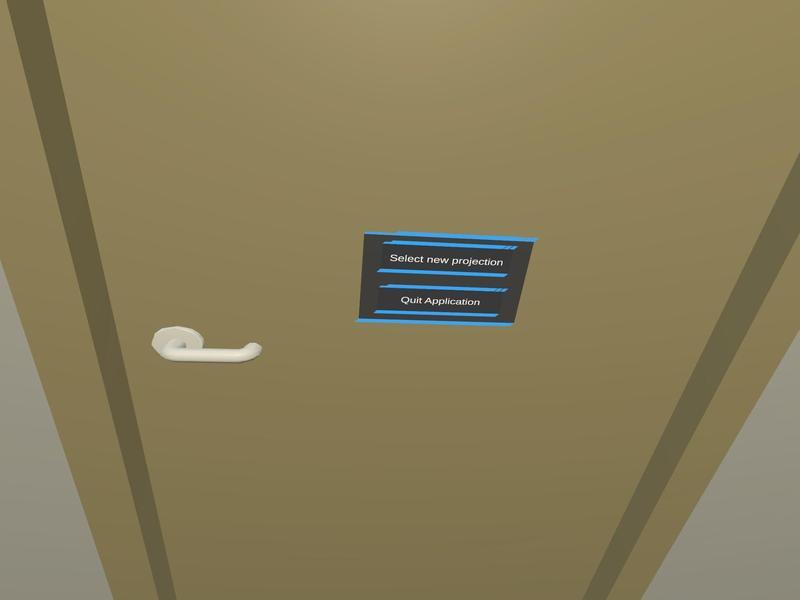
The Exit menu is on the door to the right of the radiograph monitor.
DesktopOn your computer
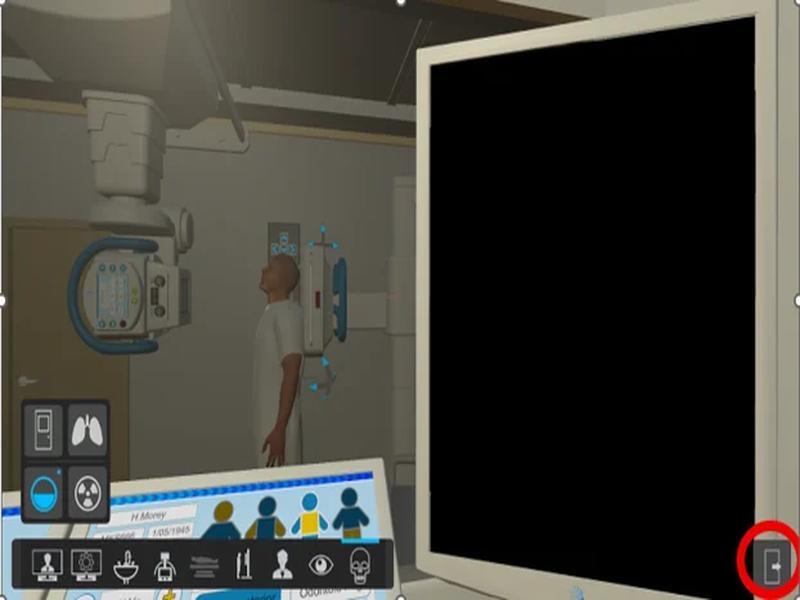
Select the exit door icon at the bottom right of the screen.
Exit menu and login options
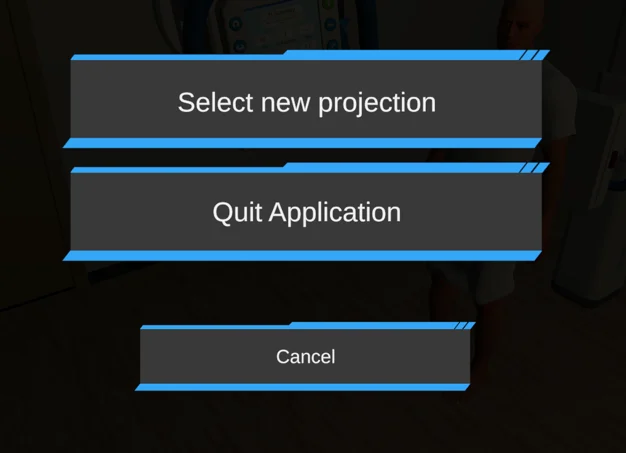
The first time you exit in a session, you see two options:
- Select a new projection takes you to a lobby where you sign back in.
- Quit Application closes the simulation.
DesktopSigning back in
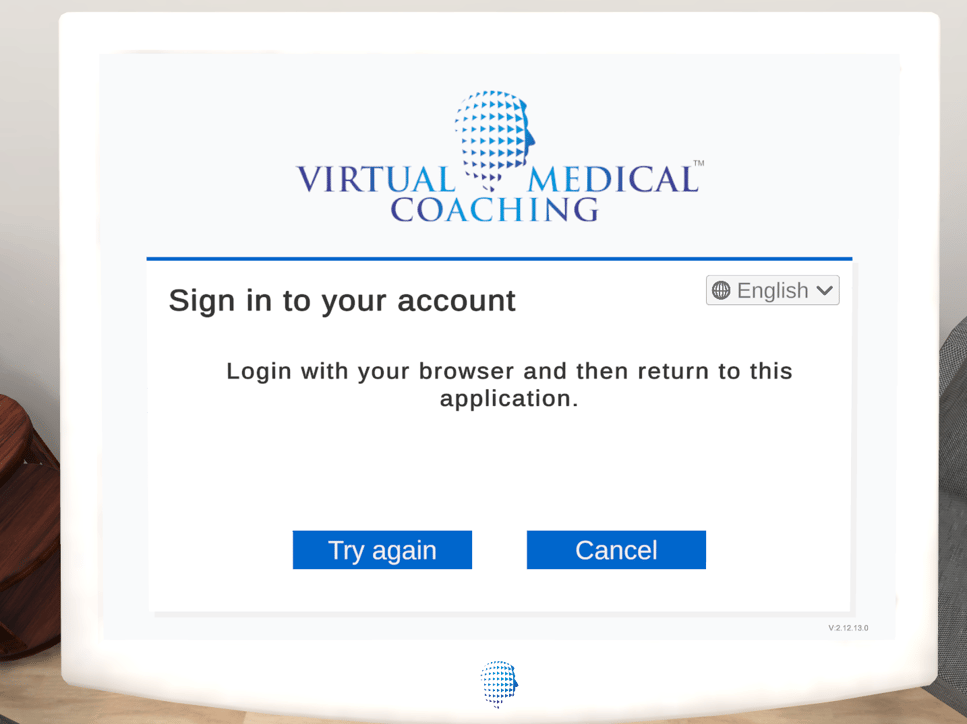
Sign back in with your email and password, or with the browser on your computer.
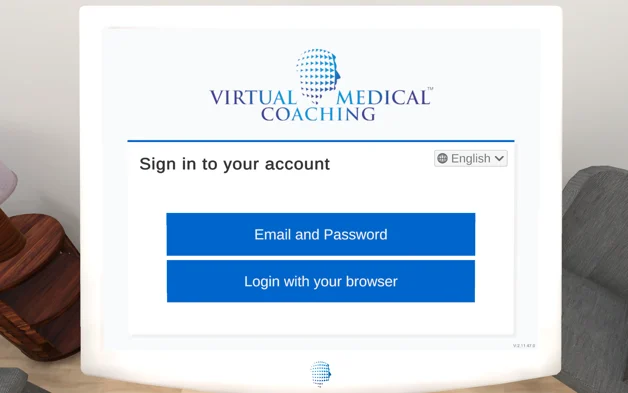
If you choose email and password, use the same details as for the Web Portal.
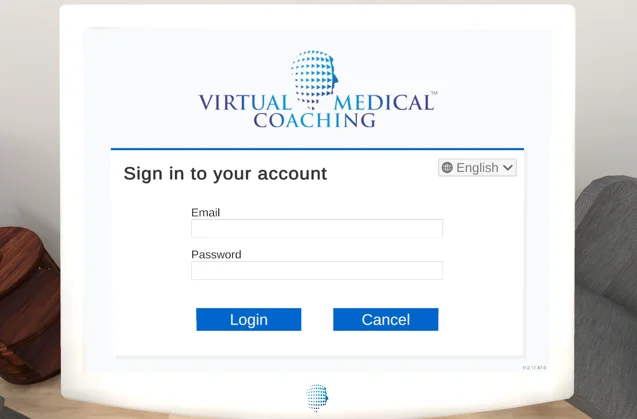
If you choose your browser, you'll see this screen if you aren't already signed in.
VRSigning back in
VR connected to a PC: sign back in with your browser.
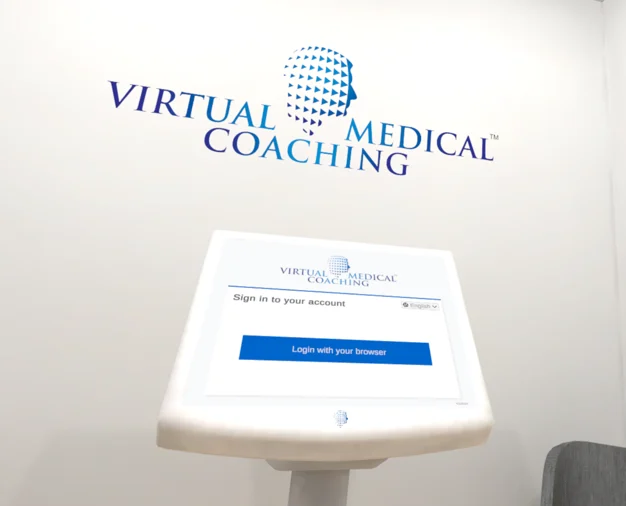
Standalone Meta Quest: sign in with your email and password, or select Using another device.
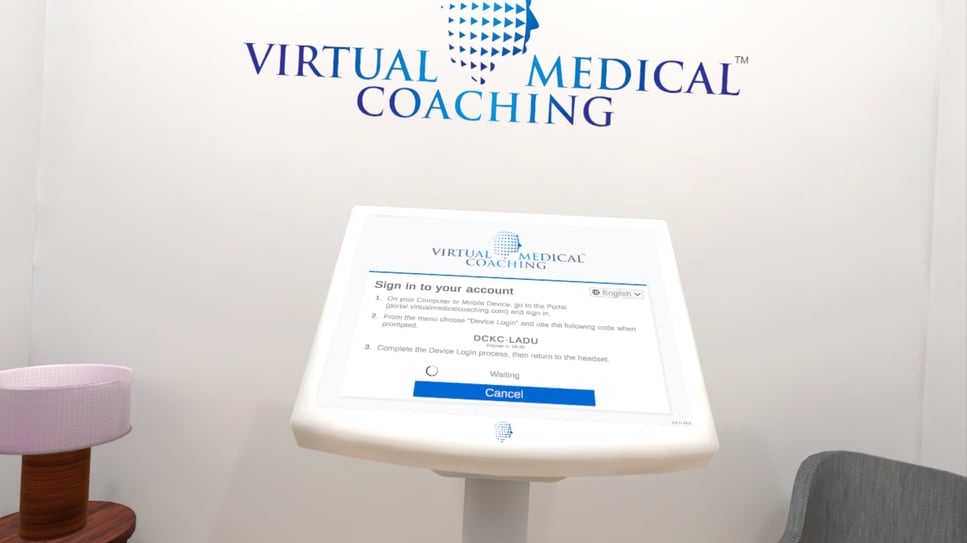
If you select Using another device, the headset shows an 8-character code. On a computer, sign in to the Web Portal, open Device Login and enter the code.
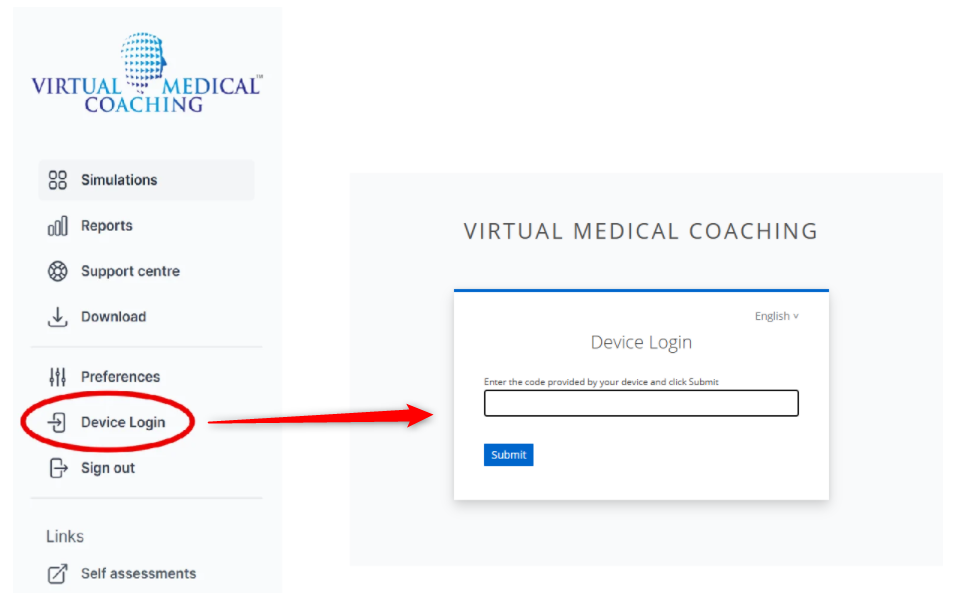
After the first time in a session, you don't need your password or a code again when you exit and select a new projection.
Once signed in, choose Practice or Assessment. In Assessment, some features of the radiography room are turned off to test your understanding of exposure factors.
When you've finished and exited the simulation, go to the Web Portal to analyse and critique your images.
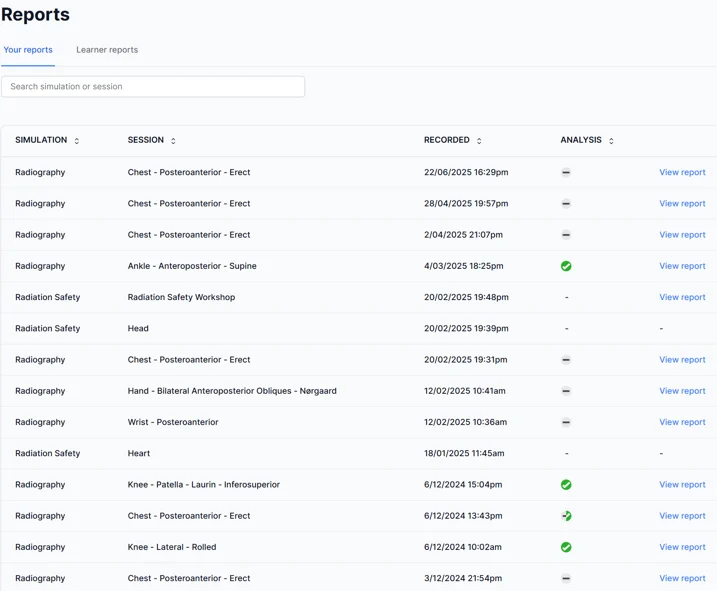
Reports
Reports shows every image you have taken, with the data for each one so you can analyse it. Teaching staff can see their students' work and which images have been analysed.
- A green tick means the series has been analysed.
- A half green tick means analysis has started but isn't finished.
- A grey dash means analysis hasn't started.
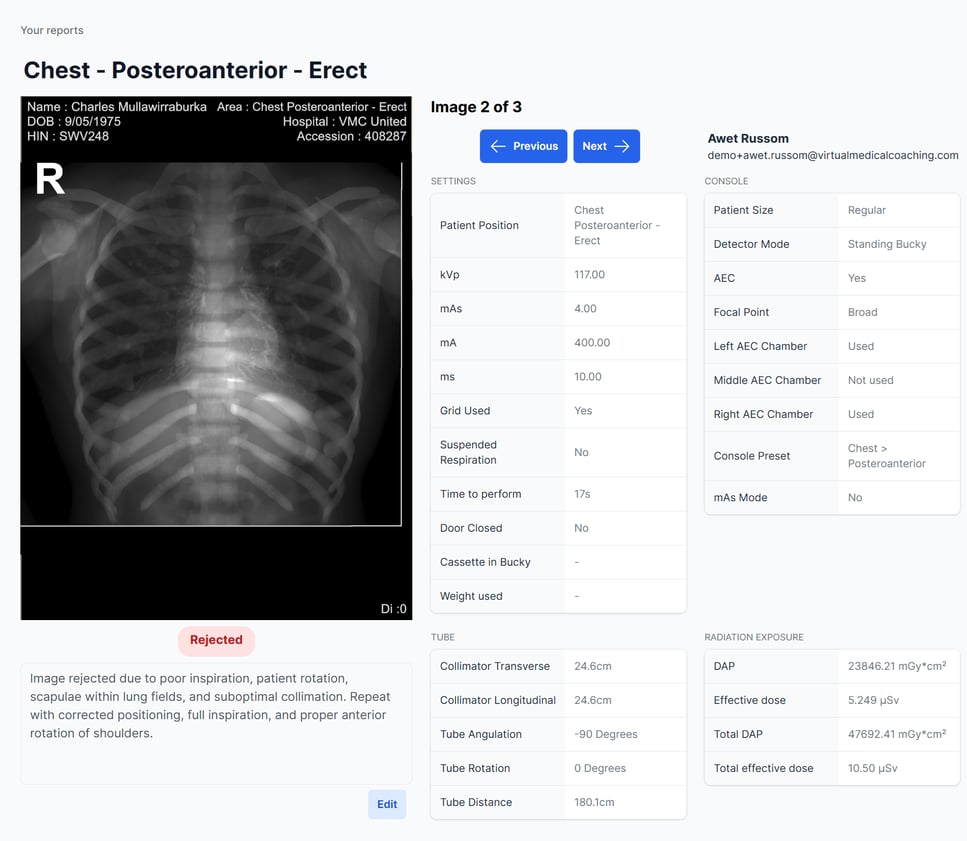
Select View Report to see the images and data for that session. All the images from a session are in one report, and you can scroll through them.
Students can't see each other's work. Tutors and lecturers can see all their students' work and analysis.
- Ask the chatbot: the Ask me anything box, bottom right of any page in the Help Center.
- Submit a help ticket.
Help us fix it first time. A ticket that only says "it's not working" doesn't tell us what has gone wrong, so we can't fix it. We'll have to write back and ask for details, which slows everything down. Please include:
- whether you use the Desktop version (Windows or Mac) or VR (and which headset)
- which part of this manual you are following
- what you expected to happen, and what happened instead
- a photo or screenshot if you can
- the name of your institution